
Your first labeling run
This walks through one assignment from opening the project to returning your work. Have MLabel installed, the configuration and CSV your preparer supplied, and your project’s labeling instructions. You do not need to edit the configuration.
-
Open the project configuration
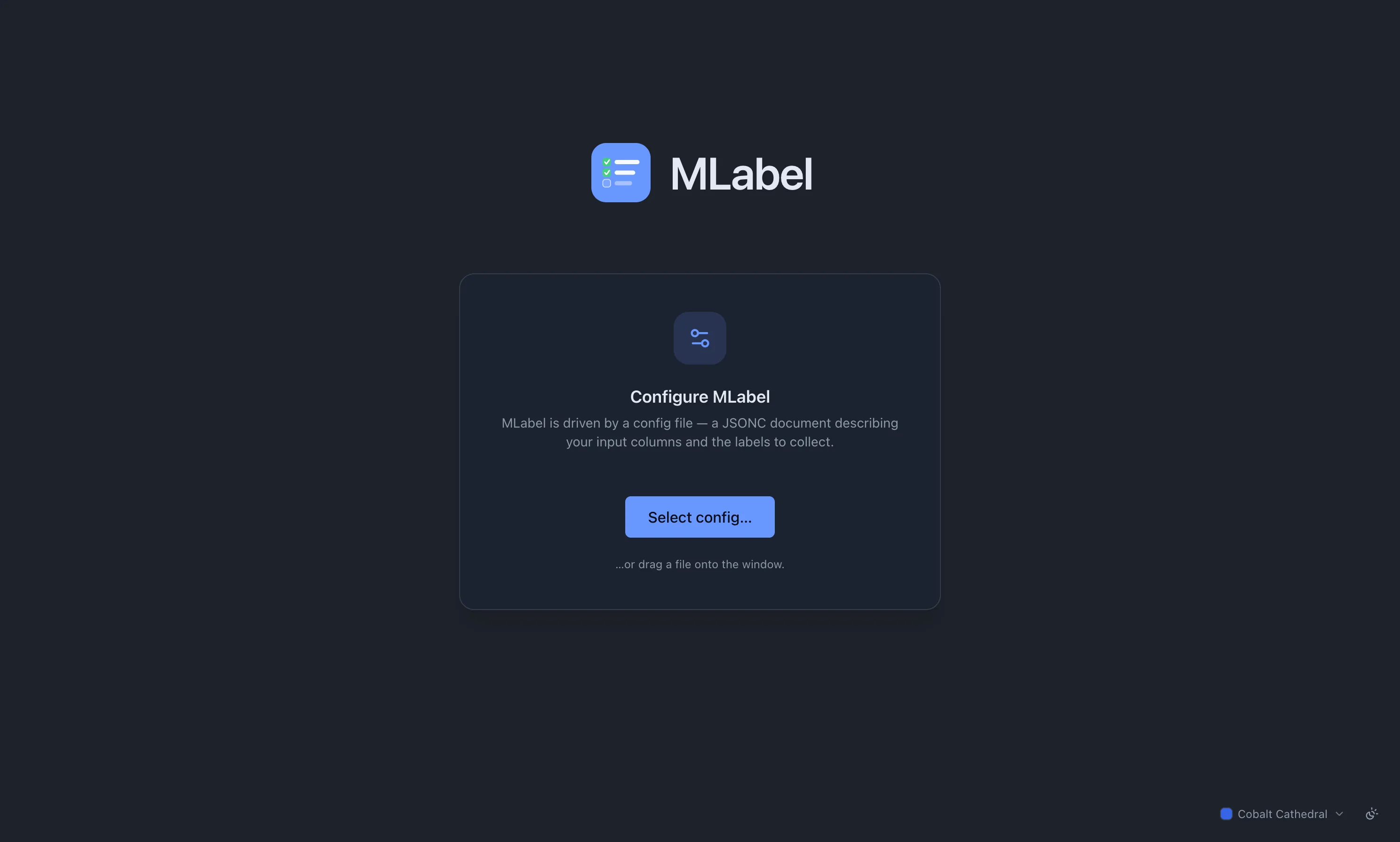
Section titled “Open the project configuration”Drop your
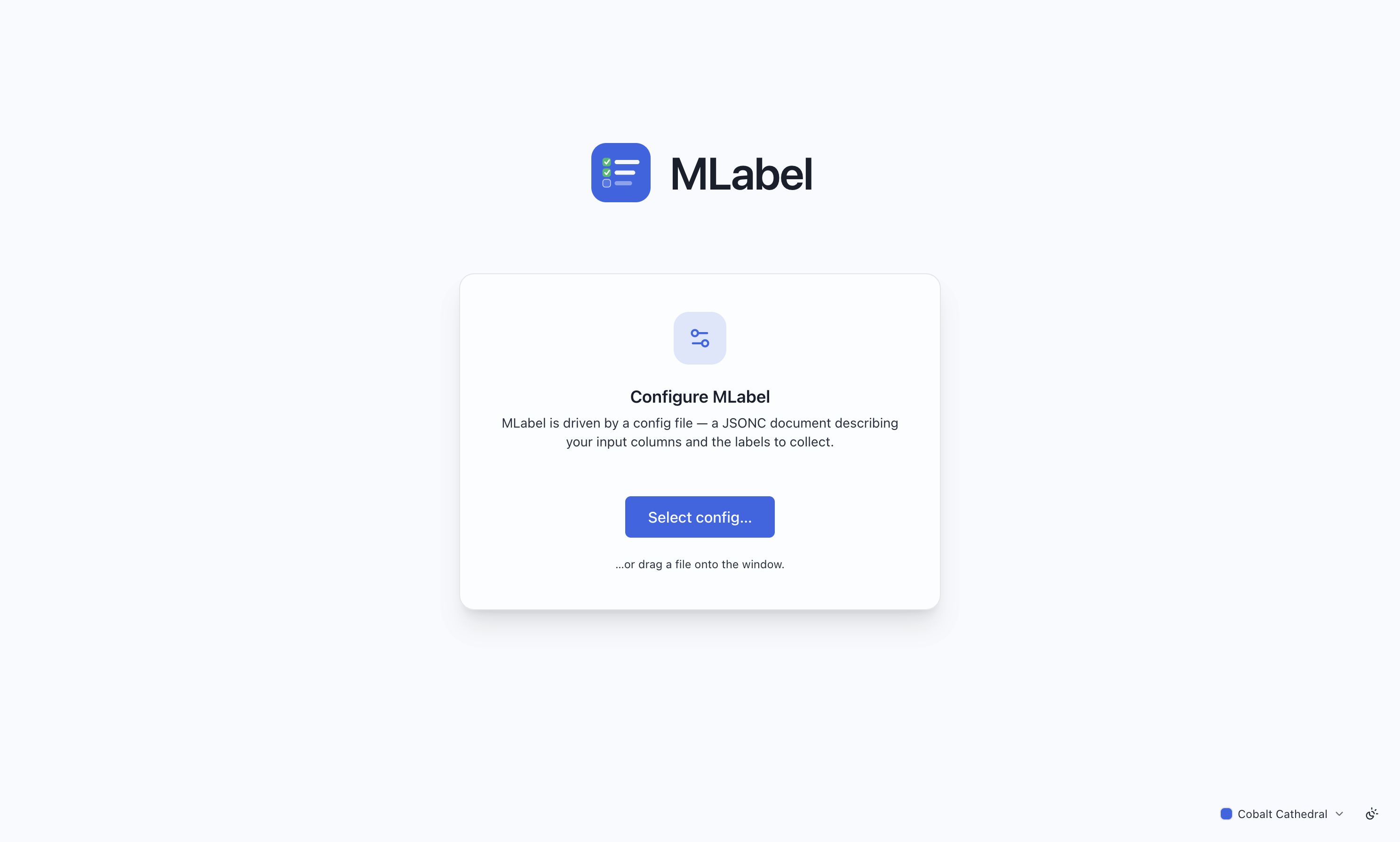
.jsoncon the window, or click Select config. If MLabel found a config next to its executable or remembered your last one, this step is already done.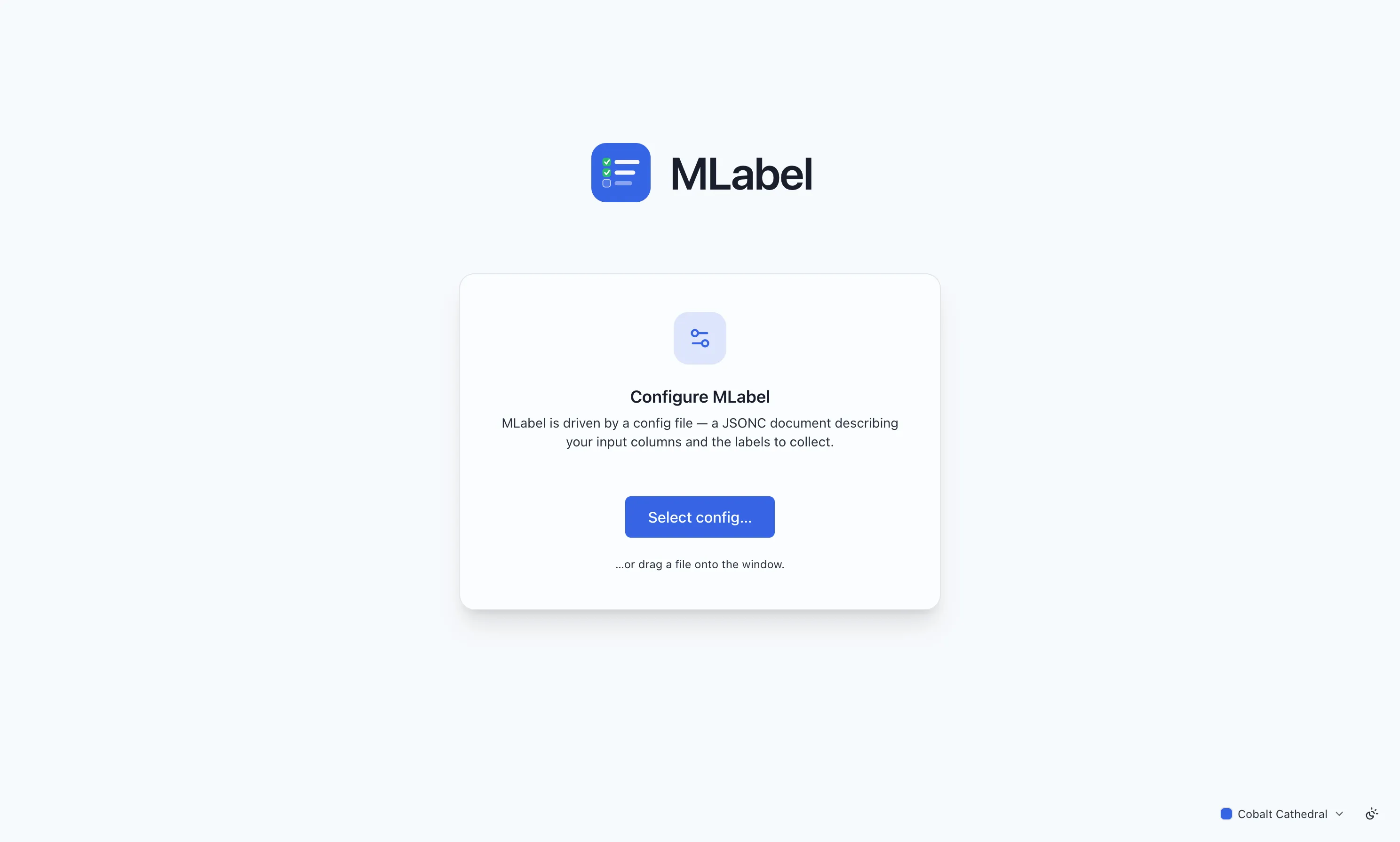
Select image to enlarge. -
Open the assigned data file
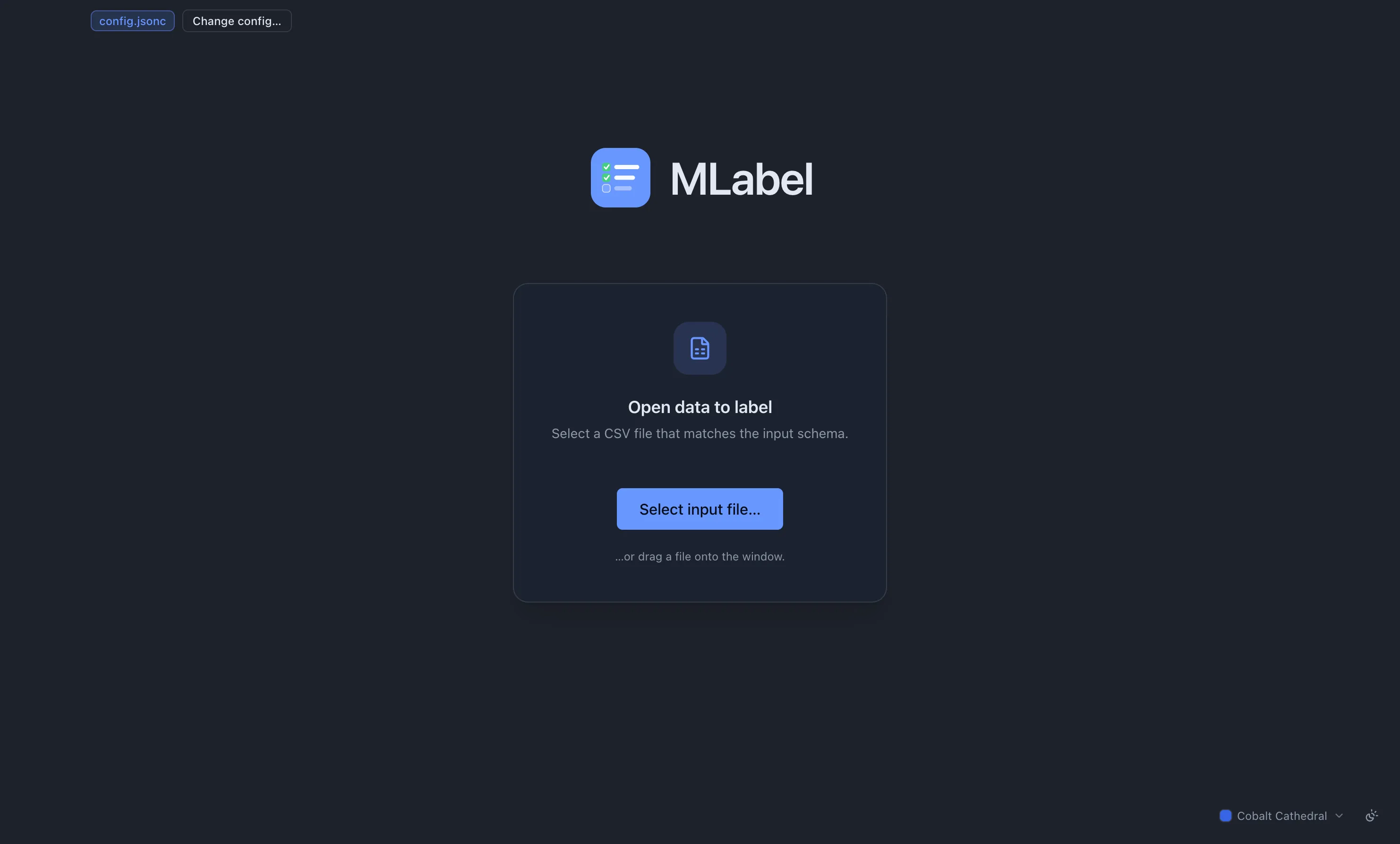
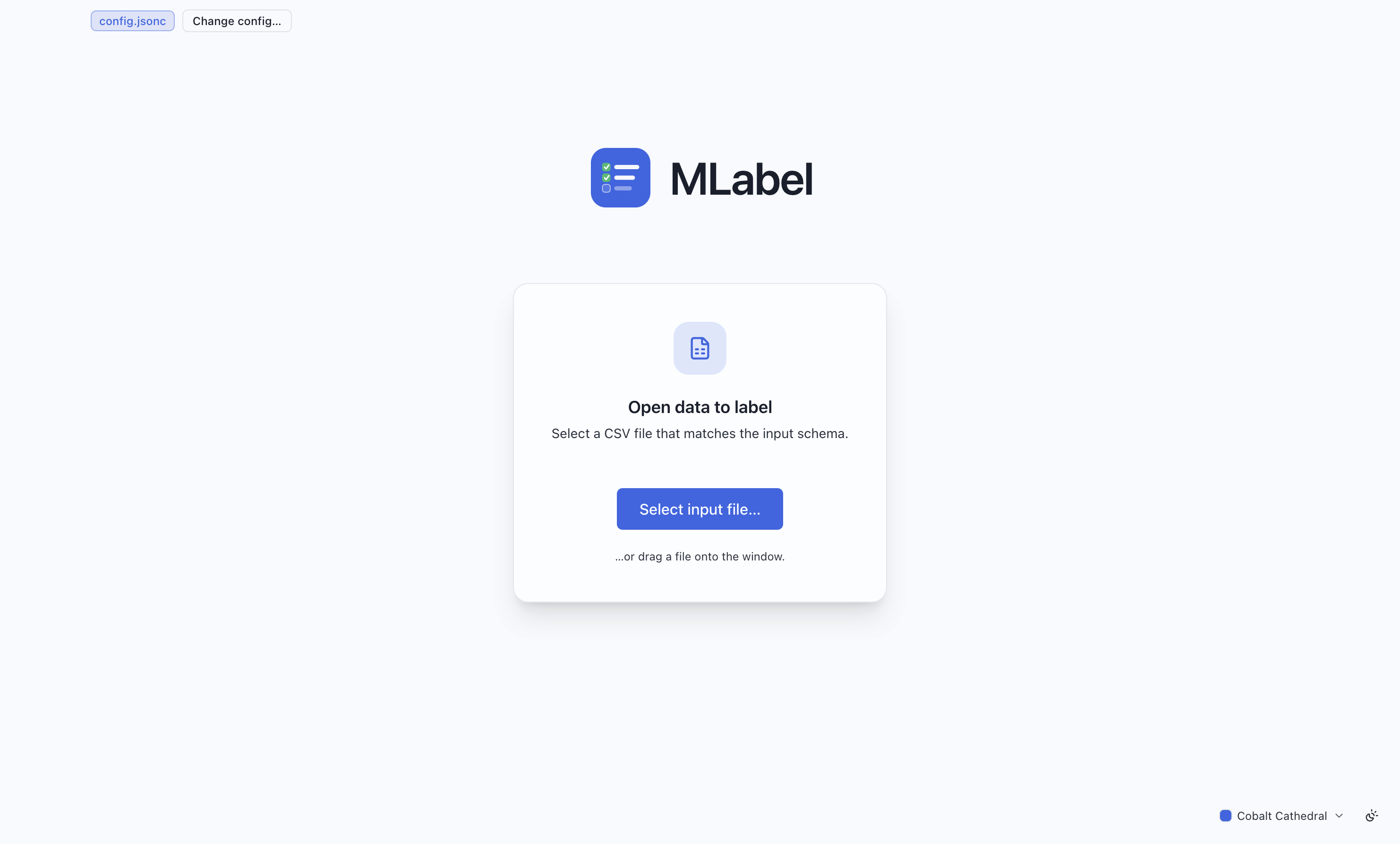
Section titled “Open the assigned data file”Now MLabel asks for a data file. Drop a
.csvon the window or pick one.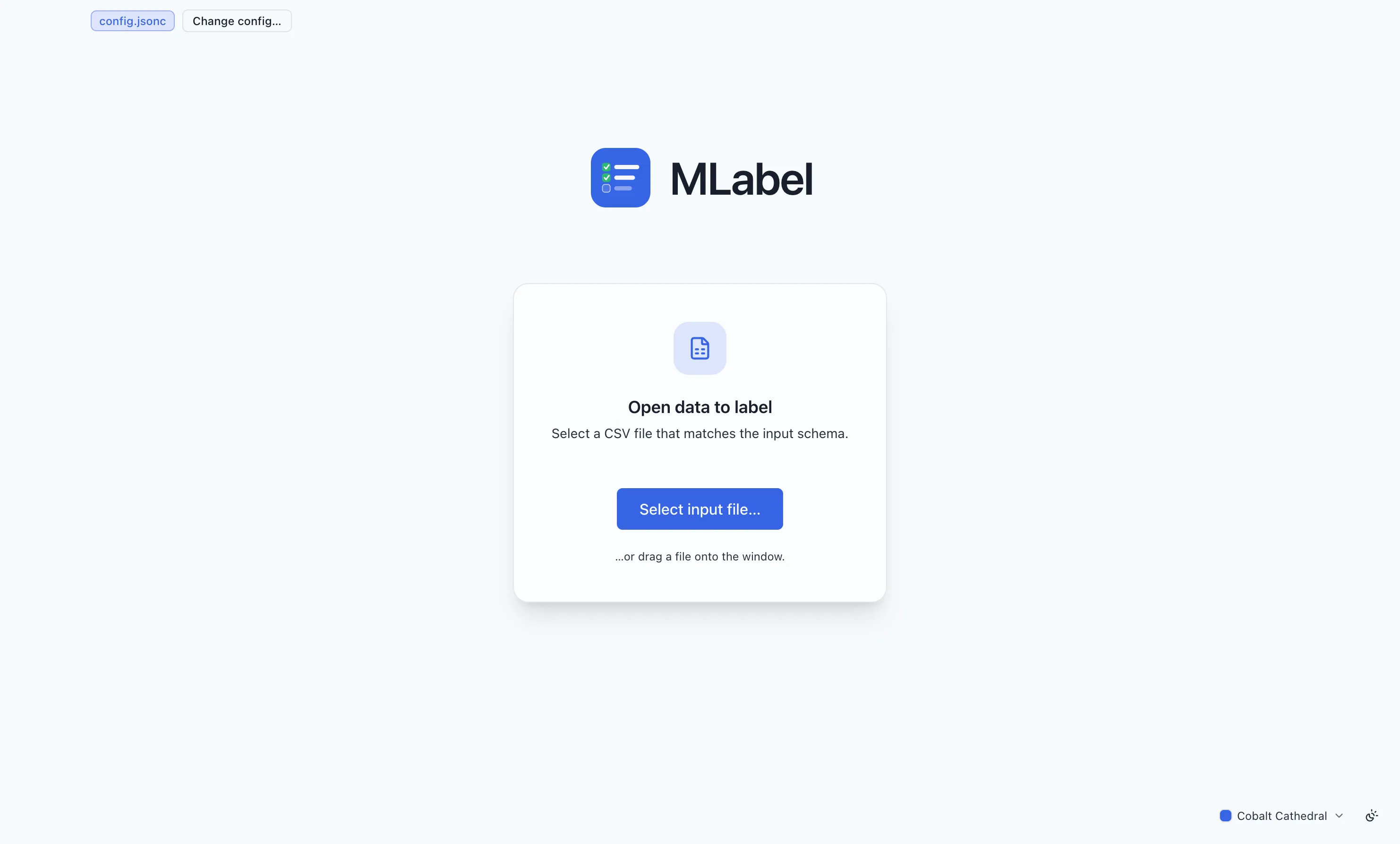
Select image to enlarge. The file must have the columns your config’s
input.fieldsdeclares. Extra columns are ignored with a warning; a missing column is an error and the file is refused — nothing is loaded, so a mismatched file can never be exported over. -
Answer the setup questions, if there are any
Section titled “Answer the setup questions, if there are any”If the config declares any session fields, you are asked them once, up front. The answers are written onto every completed output row — think “who is labeling” or “which guideline version”.
Configs with no session fields skip this screen entirely.
-
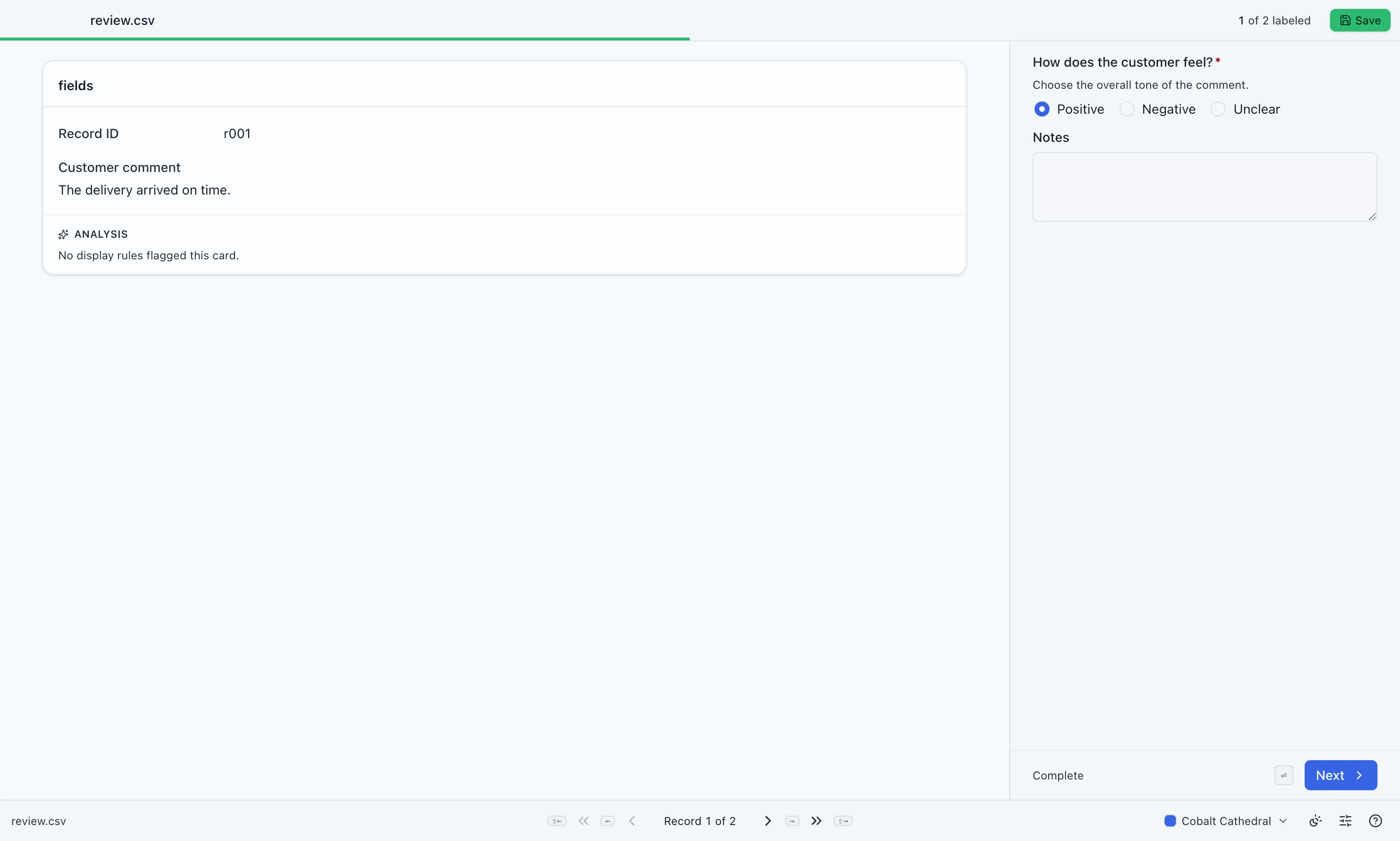
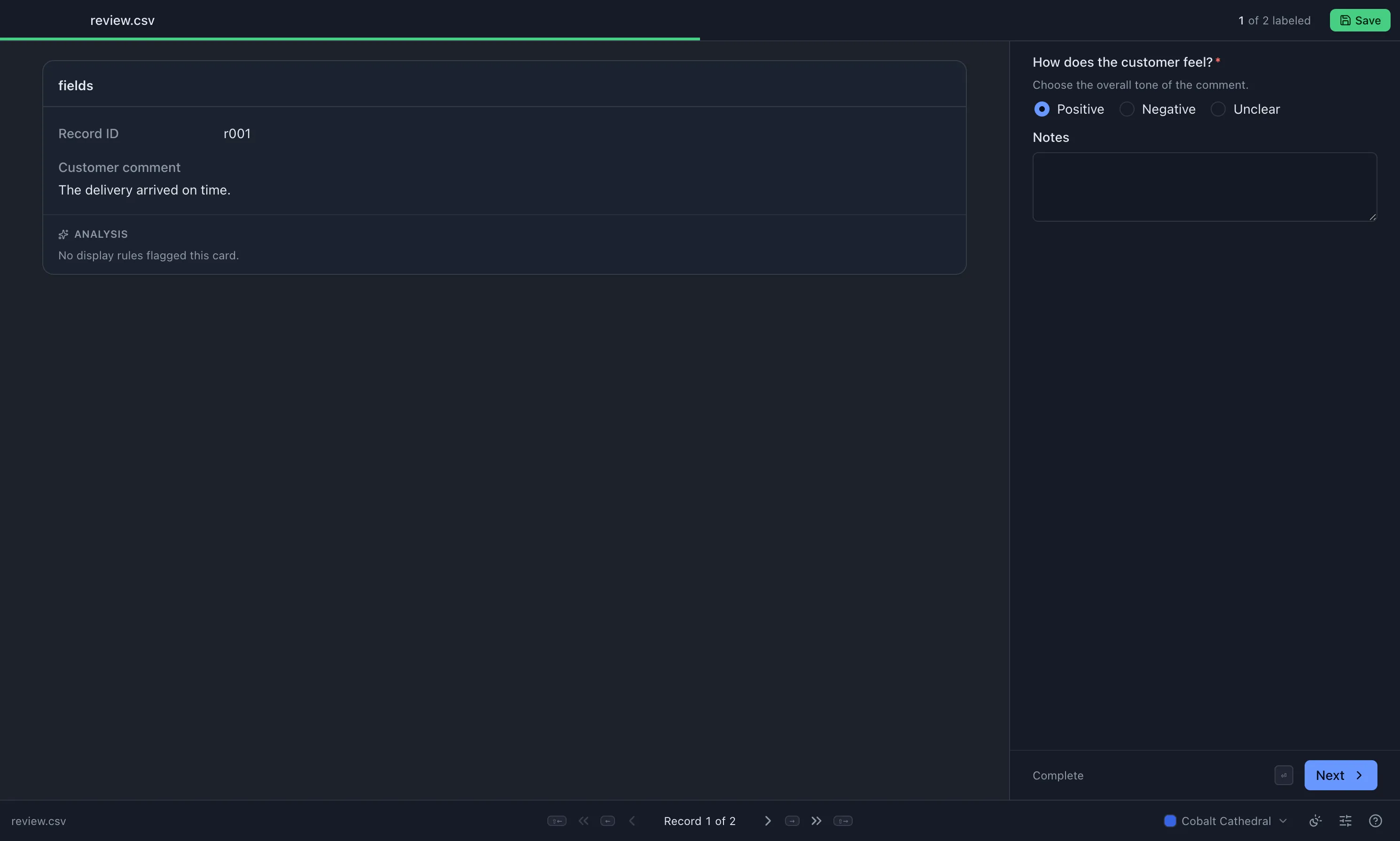
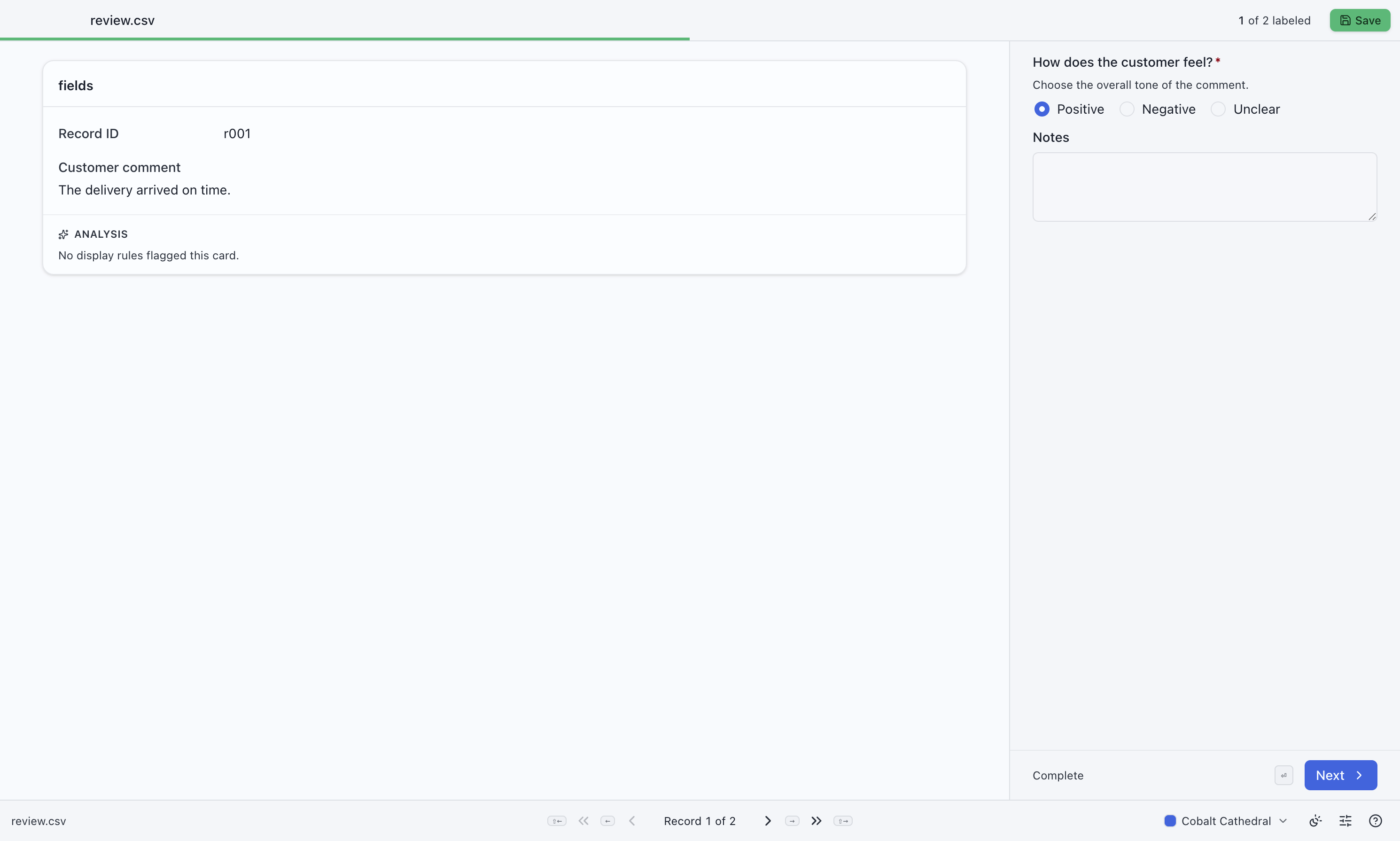
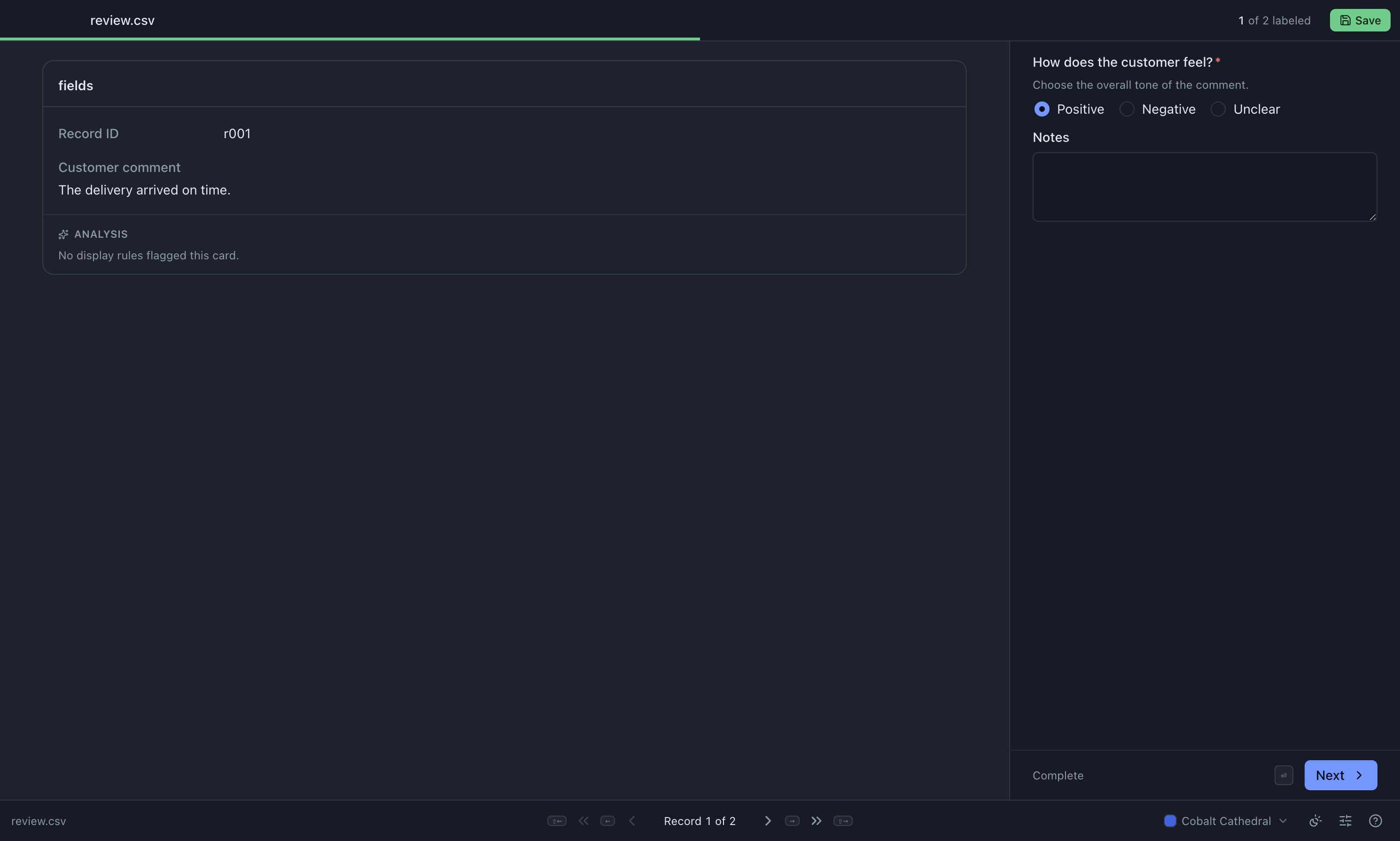
Select image to enlarge. The record is on one side, the form on the other. Fill it in, then move on:
Key Action → / Enter Next record ← Previous record 1–9 Pick the nth choice ? Show every shortcut Progress at the top shows how many records are complete. A record counts as complete when every required field holds a valid value — see Labeling.
Your work is saved continuously. Closing the app and reopening it offers to resume.
-
Export your work
Section titled “Export your work”Press Save (or ⌘/Ctrl+Enter) whenever you like — you do not have to finish everything first.
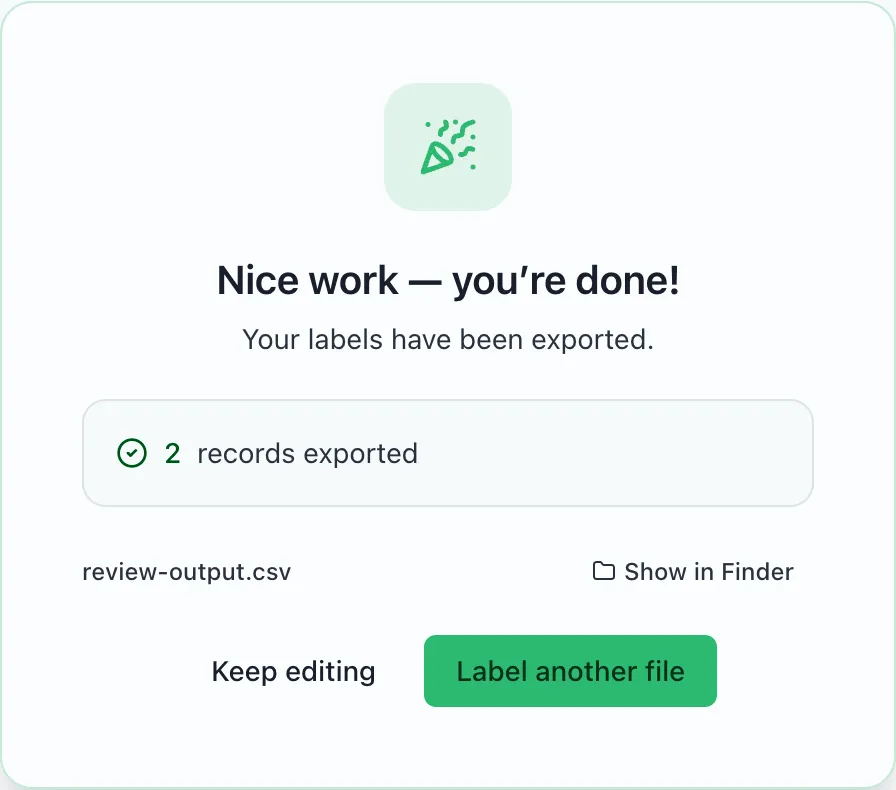
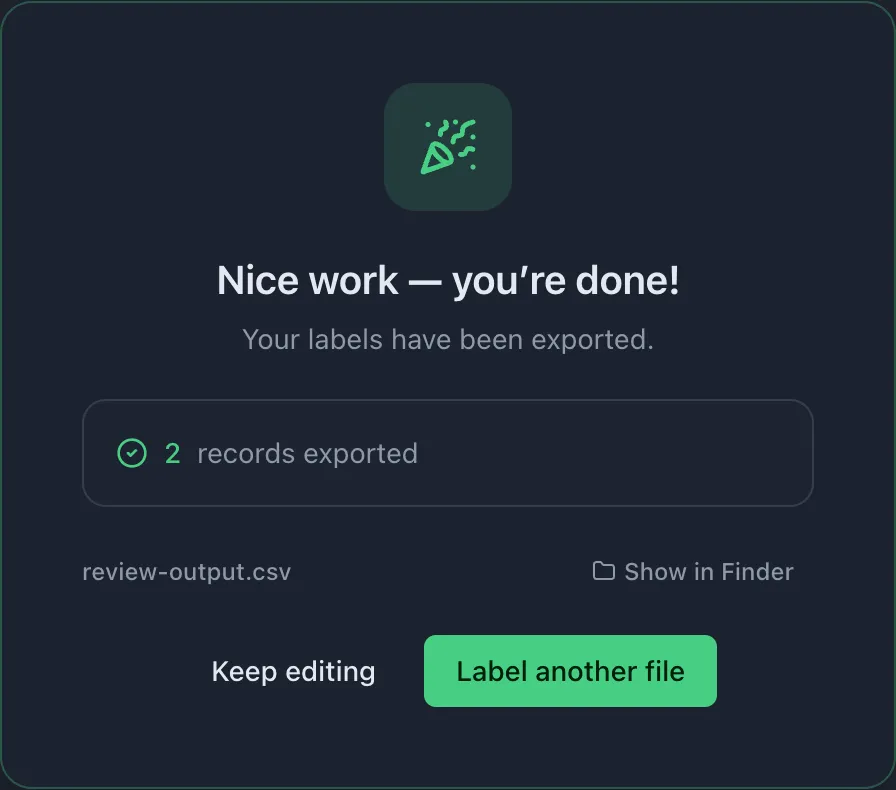
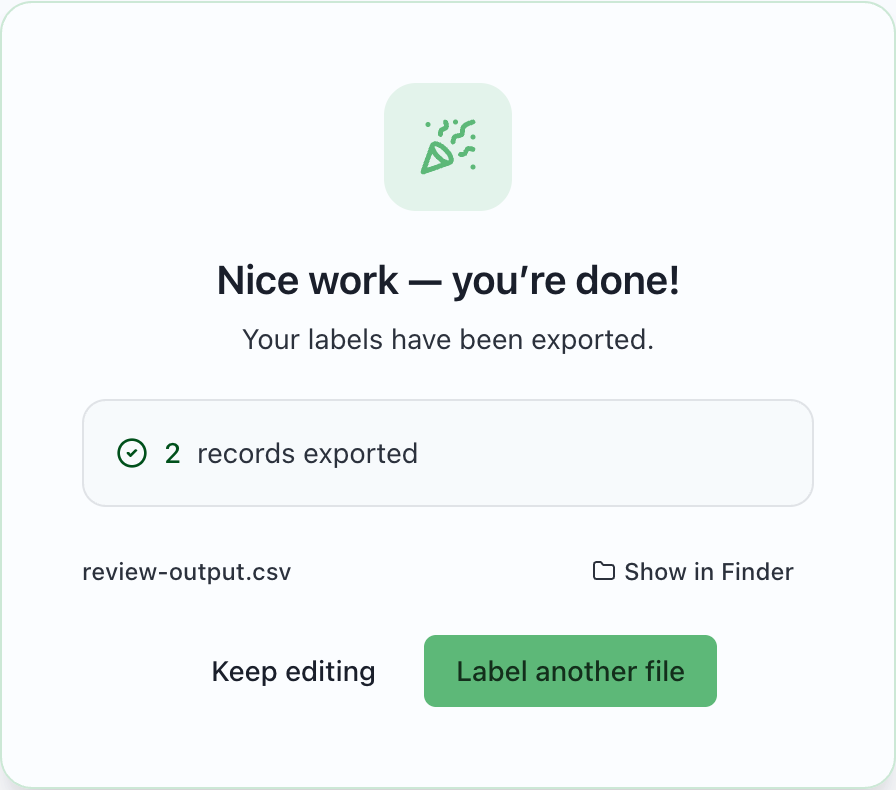
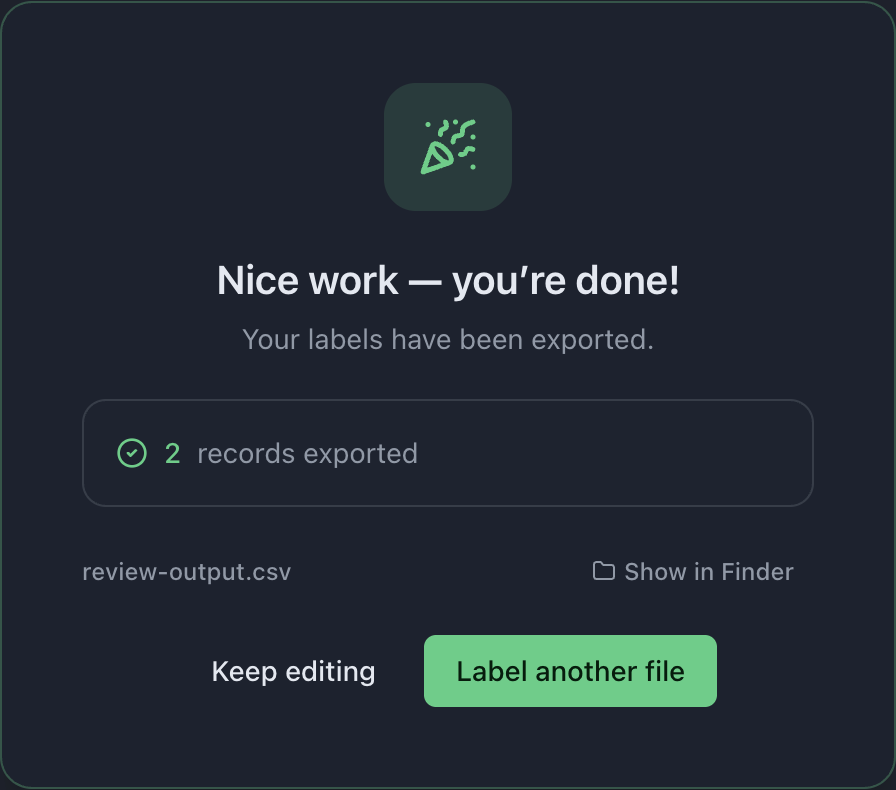
Select image to enlarge. MLabel writes the results next to your input:
yourfile-output.csv— every complete record, in the output schema.yourfile-remaining.csv— everything unfinished, in the input schema.
Show in Finder (macOS) or Show in File Explorer (Windows) locates a file in your file manager. The remaining file loads straight back into MLabel as input, so you can stop and pick up later, or hand the rest to someone else. No remaining file is written when all records are complete.
Partially entered answers are not saved in the remaining file. A successful export clears the saved session. To pause while keeping those answers, close the app and resume the same session before exporting.
What next
Section titled “What next”- Reading a record — tables, tones, and what the colours mean.
- Keyboard shortcuts — the fastest way to work.
- Exporting — exactly what lands in each file.