
Create your first project
This tutorial creates a two-record review project. You do not need to change MLabel’s code. You need the installed app and a text editor that can save plain text.
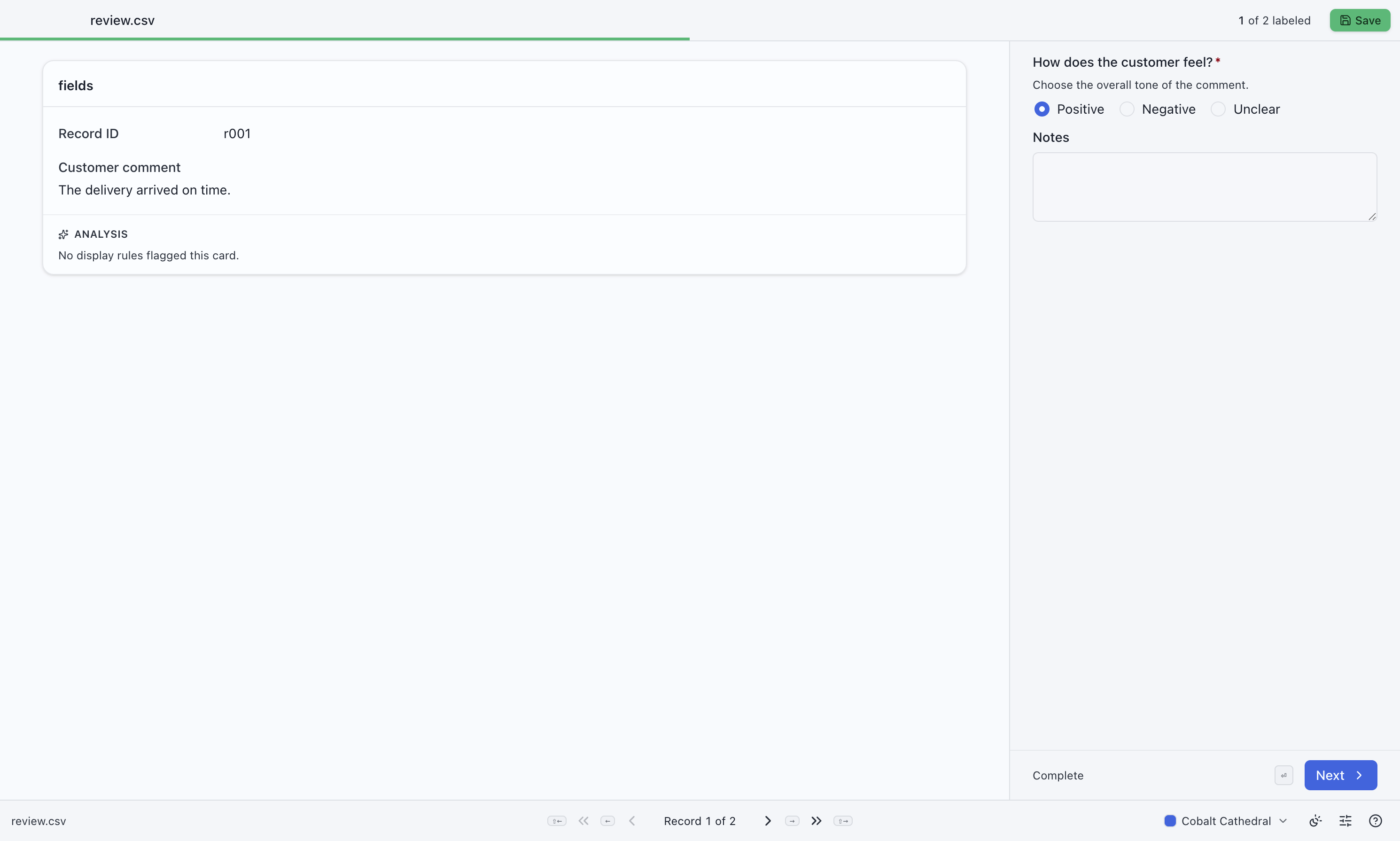
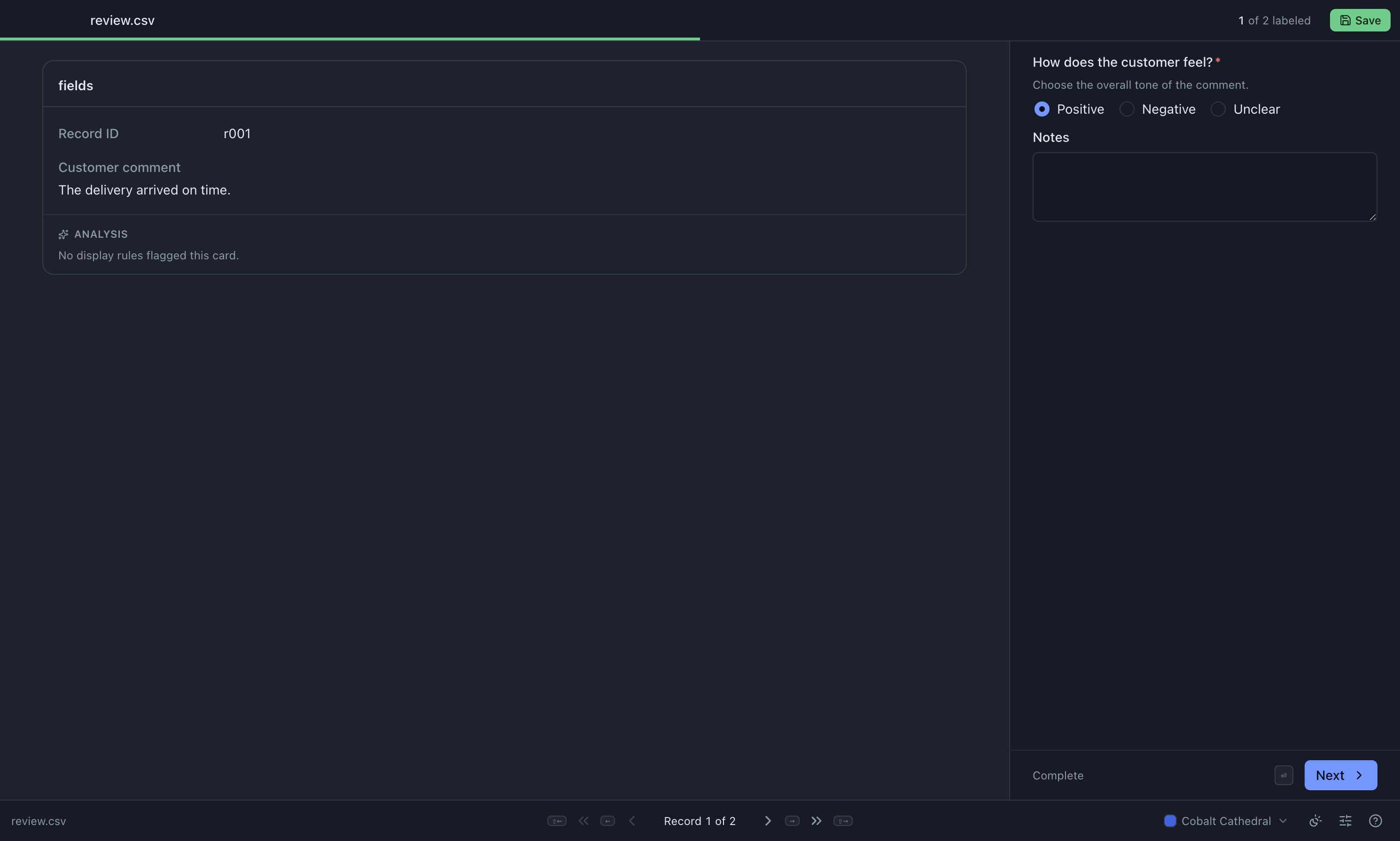
1. Save the sample data
Section titled “1. Save the sample data”Save this as review.csv, or download the sample CSV.
id,textr001,The delivery arrived on time.r002,The package was damaged.The first line names the columns. Each following line is one record. For your own project, start with a small sample of the real data and keep an unchanged original.
2. Save the project configuration
Section titled “2. Save the project configuration”Save this as review.jsonc, or download the configuration.
A .jsonc file is JSON that also allows comments and trailing commas.
{ "$schema": "https://mlabel.vlad.gg/mlabel.schema.json", "version": 2, "network": { "updateChecks": false }, "input": { "fields": [ { "name": "id", "type": "text", "display": "Record ID" }, { "name": "text", "type": "text", "display": { "title": "Customer comment", "titlePosition": "above" }, }, ], }, "output": { "fields": [ { "name": "id", "type": "text", "fill": { "kind": "copy" } }, { "name": "sentiment", "type": "enum", "widget": "radio", "display": { "title": "How does the customer feel?", "description": "Choose the overall tone of the comment.", }, "choices": [ { "name": "positive", "display": "Positive" }, { "name": "negative", "display": "Negative" }, { "name": "unclear", "display": "Unclear" }, ], }, { "name": "notes", "type": "text", "widget": "textarea", "display": "Notes", "required": false, }, ], },}The configuration schema version is 2, even though the application version is 0.4.0. They are separate version numbers.
| Setting | Result |
|---|---|
input.fields |
Displays the two source columns for reading. |
fill: { "kind": "copy" } |
Carries the ID into the output without asking the labeler to retype it. |
type: "enum" with widget: "radio" |
Shows the available answers together; one can be selected. |
Choice name |
The value stored in the CSV, such as positive. |
display |
The friendly wording shown on screen. |
required: false |
Allows notes to be left empty. The sentiment answer is required by default. |
3. Load and check it
Section titled “3. Load and check it”Open MLabel and select the configuration, then the sample CSV. If MLabel reports errors, fix them and try again. Validation checks syntax, then allowed settings, then relationships between fields; fixing one stage may reveal more errors.
If you have the repository and its development dependencies installed, you can also check without opening the app:
pnpm validate path/to/review.jsoncRepeat until validation succeeds. This command is a repository tool, not a command shipped with the installed desktop app.
4. Preview the form
Section titled “4. Preview the form”Choose a sentiment for the first record. Leave its notes empty to check that they really are optional. Move to the second record and try a different answer.


Compare all available controls →
5. Export and inspect the result
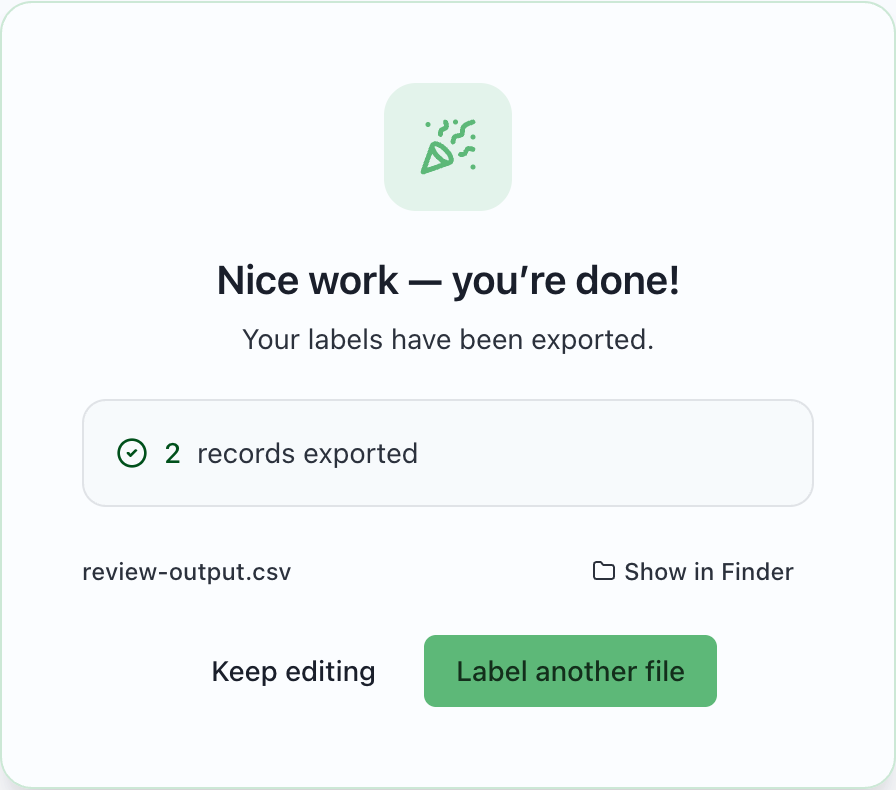
Section titled “5. Export and inspect the result”Select Save. Beside the input file, review-output.csv should contain columns in this
order: id, sentiment, notes. Check that IDs match the source and that the sentiment
values are the configured choice names.
For a second check, start with a fresh copy of the sample file and leave a sentiment unanswered. That record should go to a remaining file instead of the finished output. Use a new input filename or archive previous exports first: MLabel refuses to overwrite existing export files.
6. Adapt and pilot
Section titled “6. Adapt and pilot”Replace the sample columns and questions with your project’s definitions. Add a session field if you need the labeler’s name on every finished row. Pilot the configuration on representative records, including blanks and difficult cases, then give the preparer the tested configuration and its version identifier.