
Illustrated cookbook
Choose the result you want, then open its recipe. Every recipe includes a complete configuration, sample CSV, actual MLabel screenshots, and a result to check. You can run them without editing the application.
The small screenshots below focus on the relevant control or card. Select an image to see it at full size.
Multi-select
Section titled “Multi-select”Let a labeler record every issue that applies to a delivery.
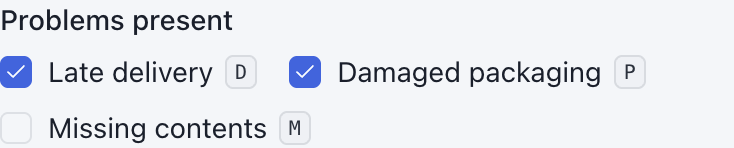
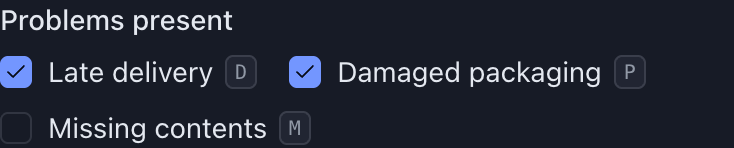
Select several answers: configuration, sample data, and walkthrough →
An audit trail
Section titled “An audit trail”Record the reviewer and guideline version once per file, alongside each completed record.
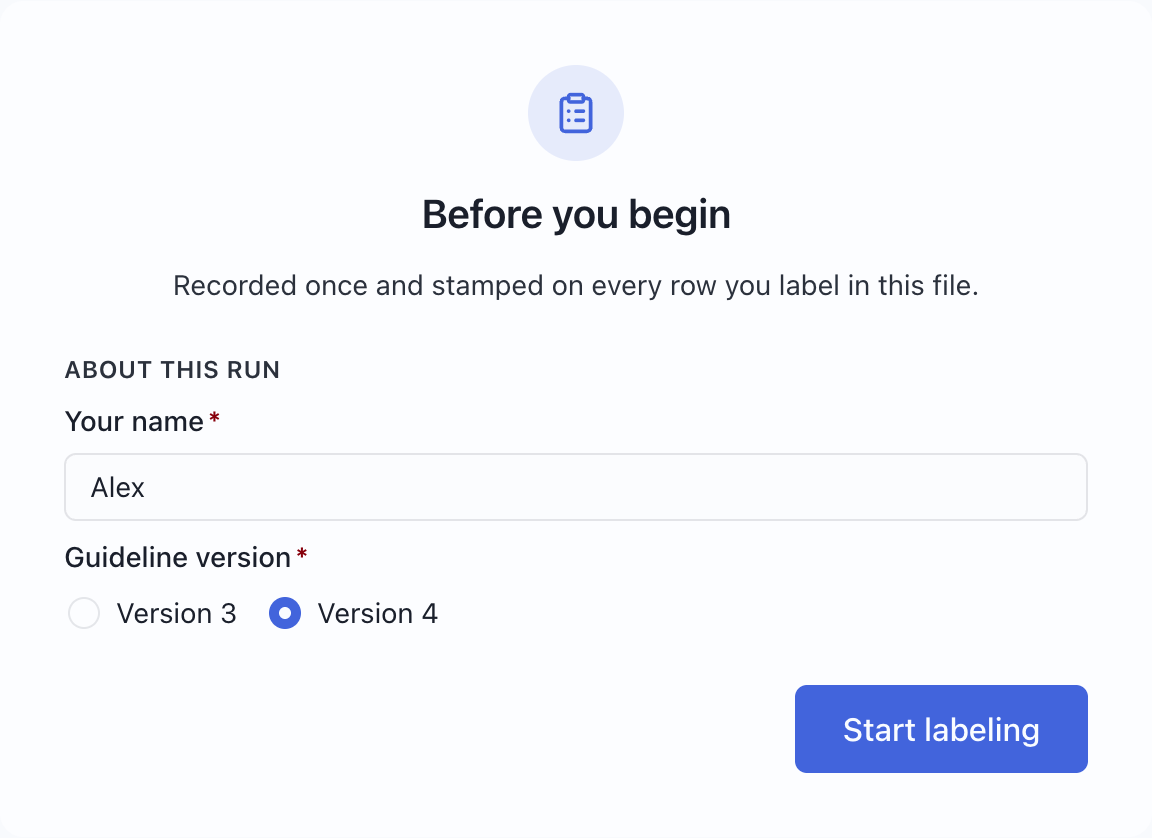
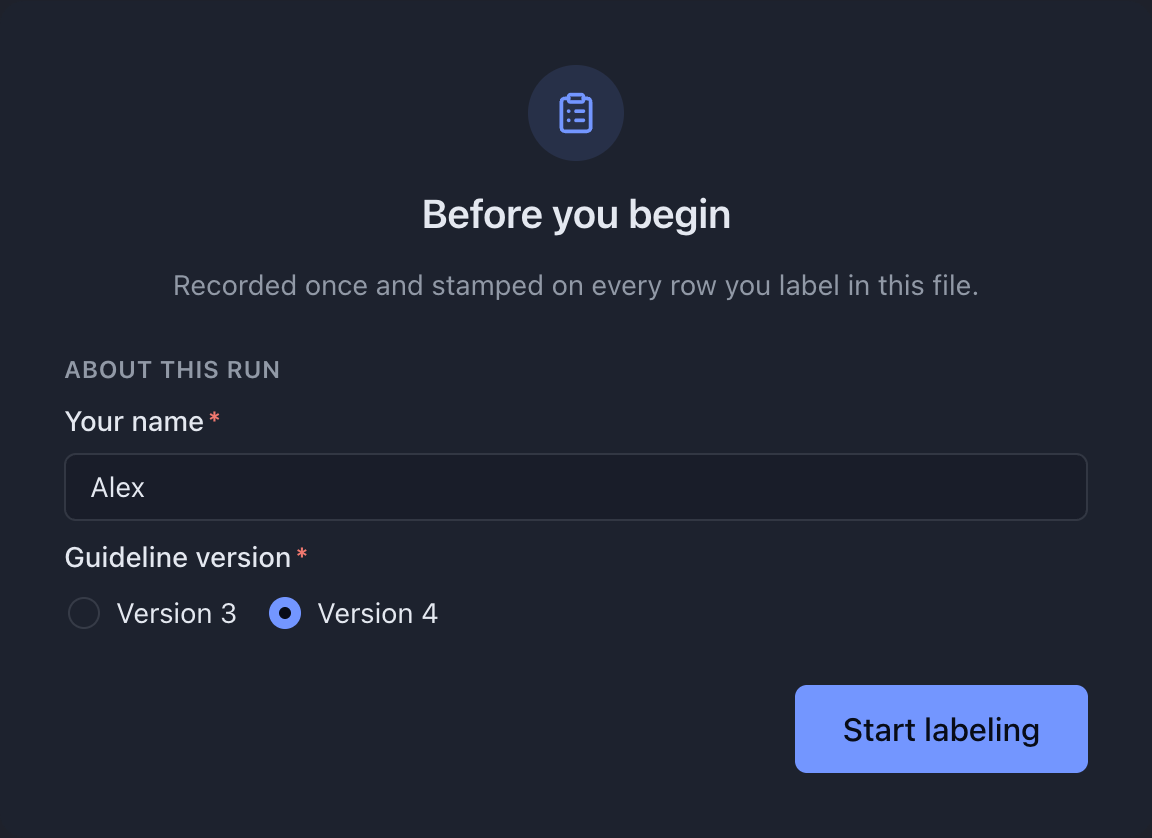
Ask once for reviewer details: configuration, sample data, and walkthrough →
Renaming a column on the way out
Section titled “Renaming a column on the way out”Keep a source identifier in the exported dataset without asking anyone to retype it.
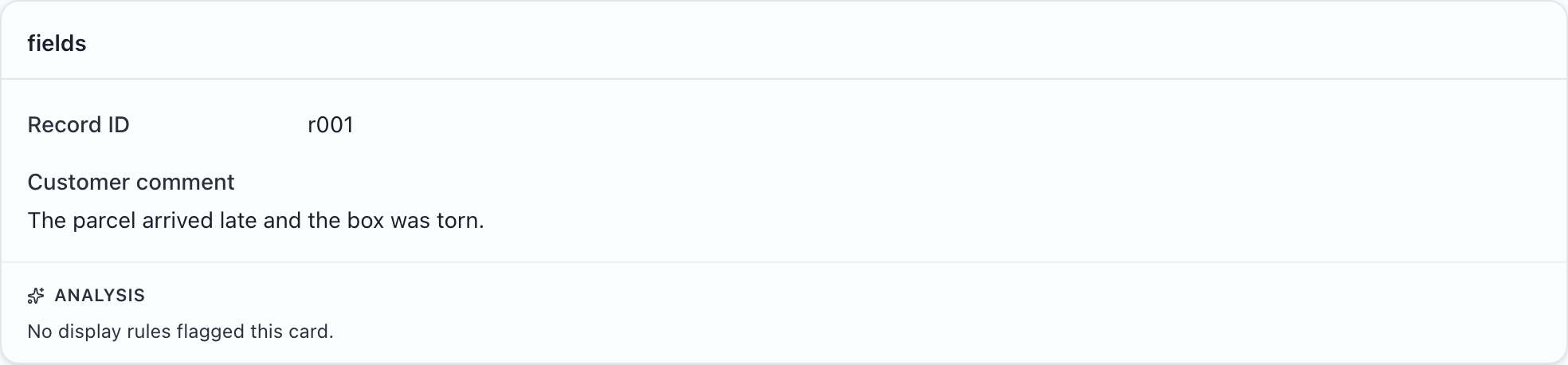
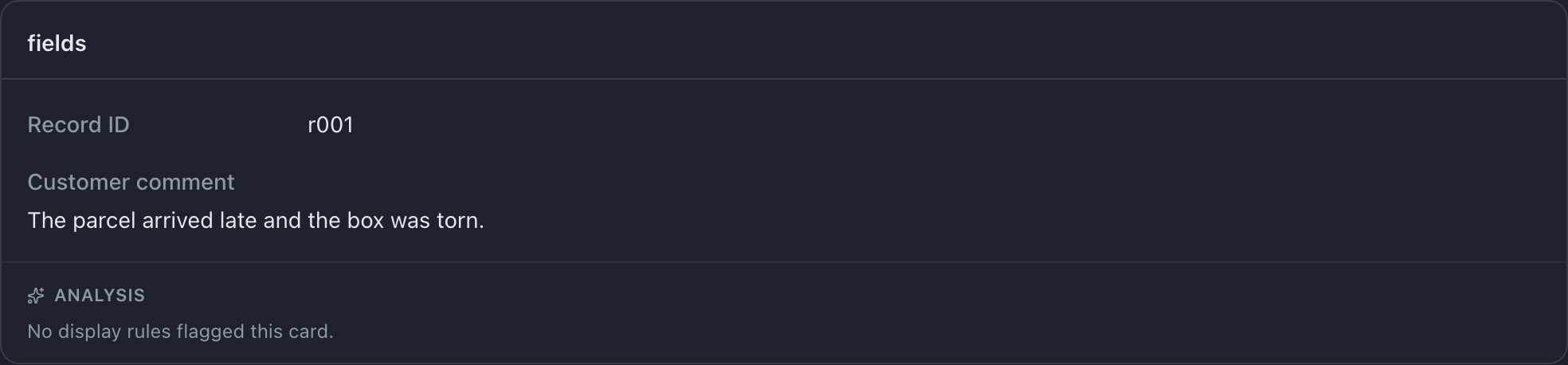
Carry an ID into a renamed column: configuration, sample data, and walkthrough →
A nested table with grouped columns
Section titled “A nested table with grouped columns”Show several checks without spreading their results across a wide table.
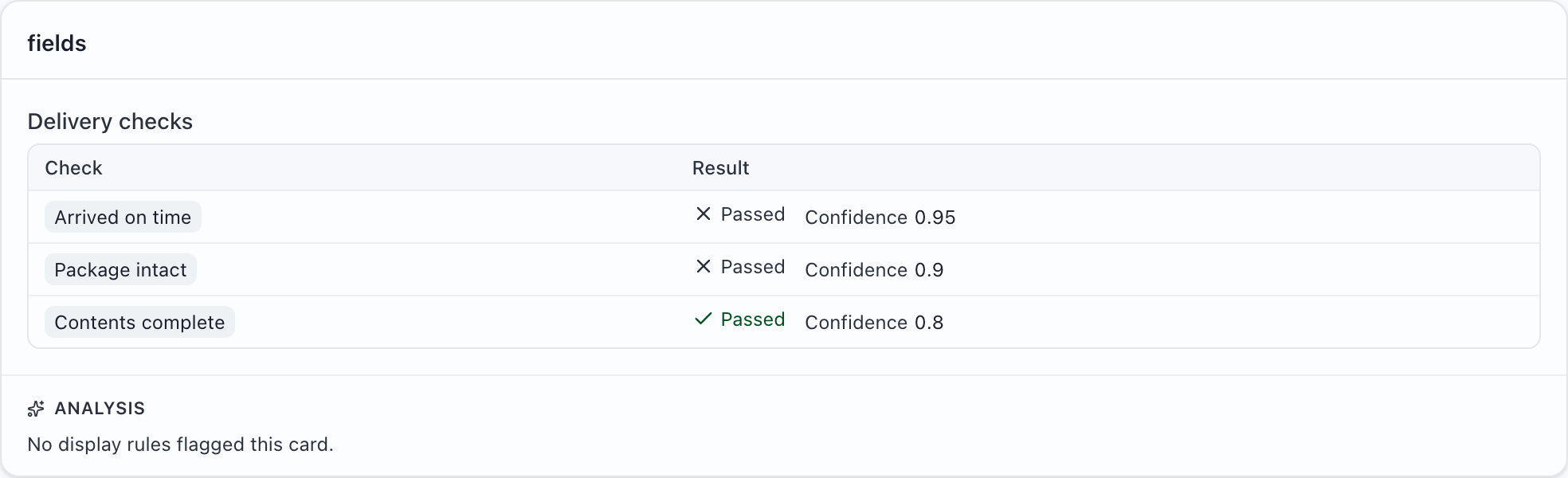
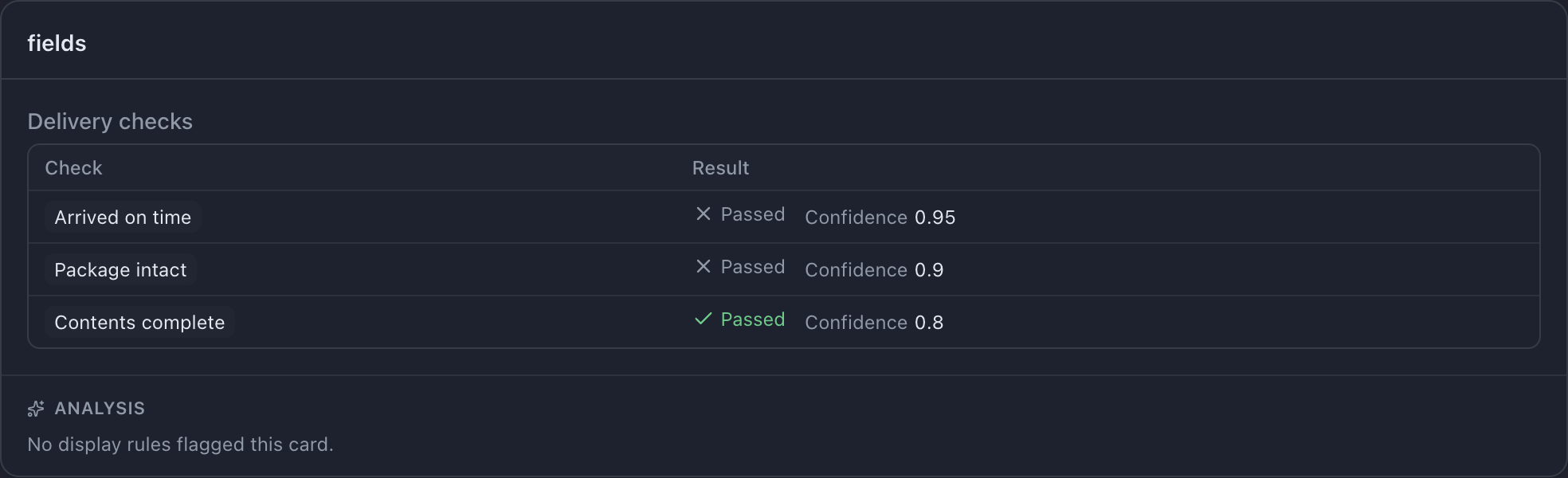
Group values in a source table: configuration, sample data, and walkthrough →
A dictionary of objects
Section titled “A dictionary of objects”Make named prior annotations readable without turning each reviewer into a separate CSV column.
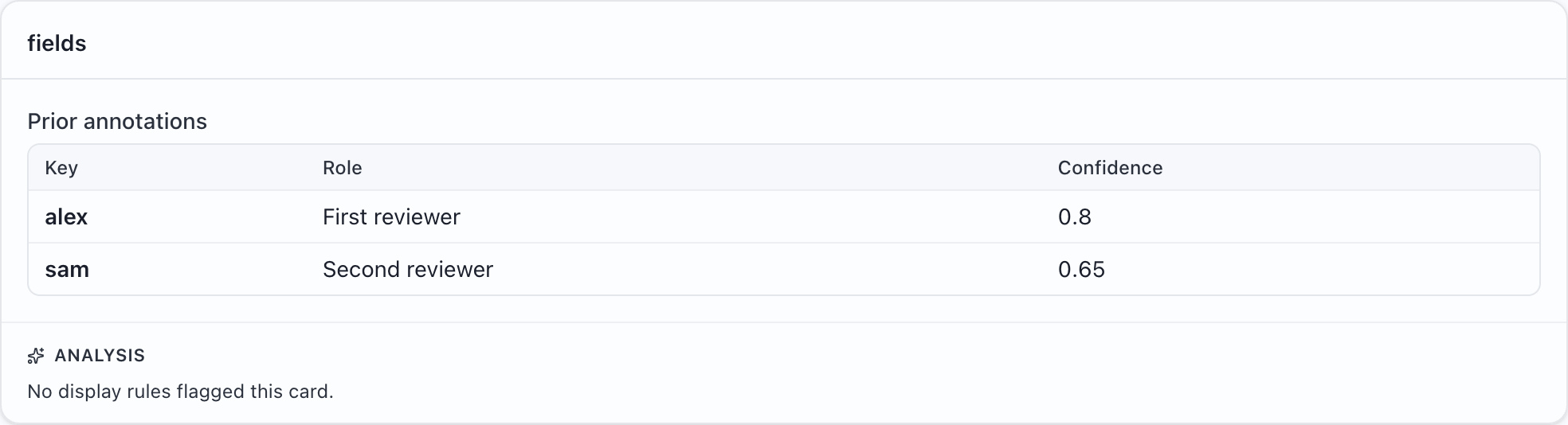
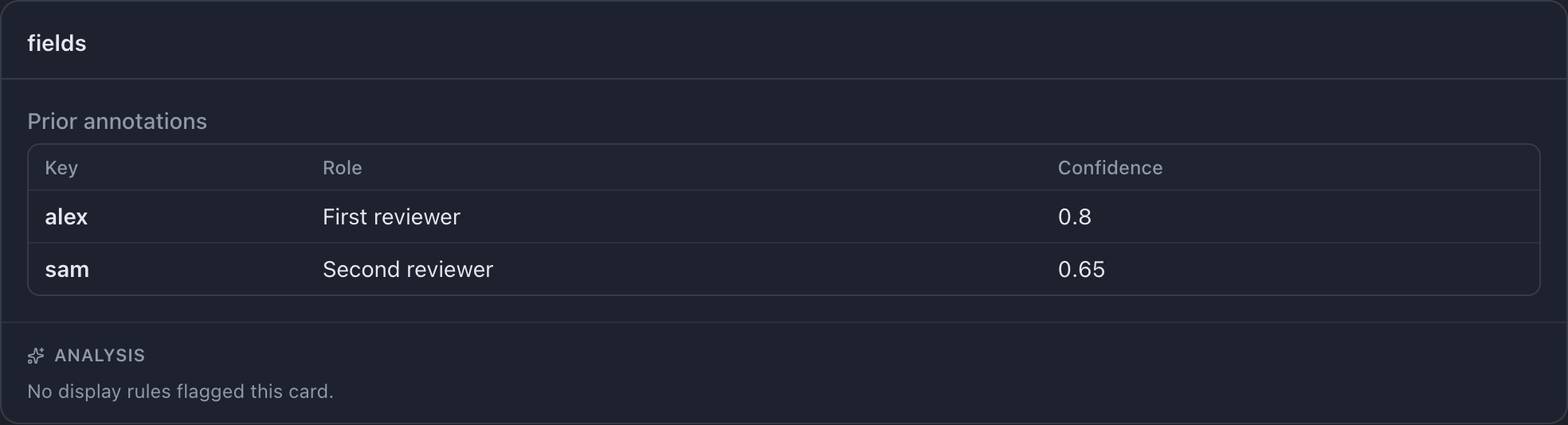
Display a dictionary as a table: configuration, sample data, and walkthrough →
Highlighting suspicious input
Section titled “Highlighting suspicious input”Help a reviewer notice when an inspection score falls below the required score.
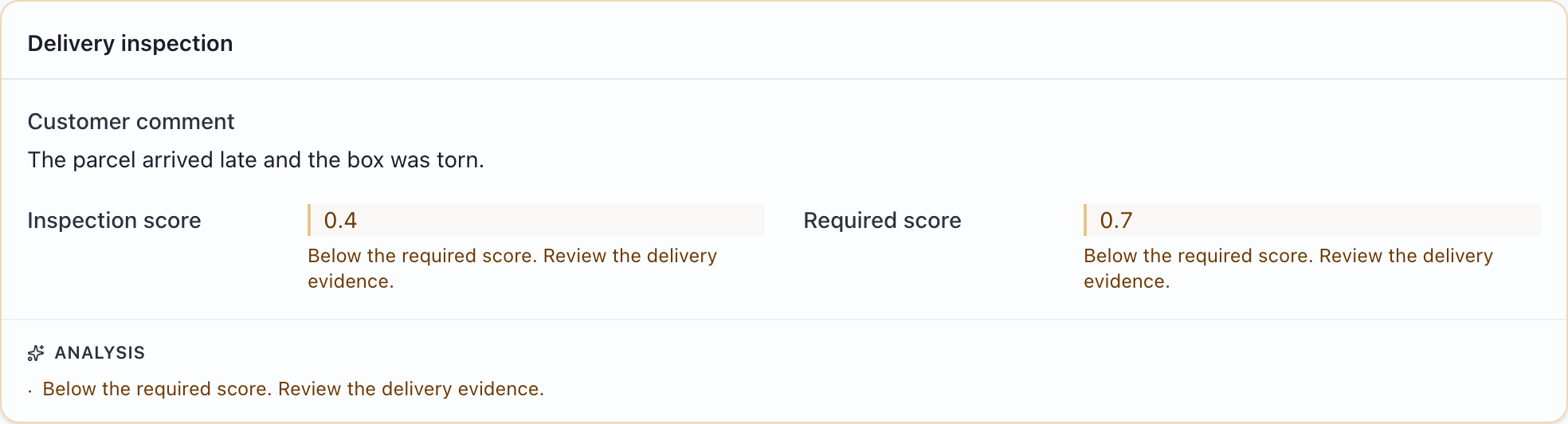
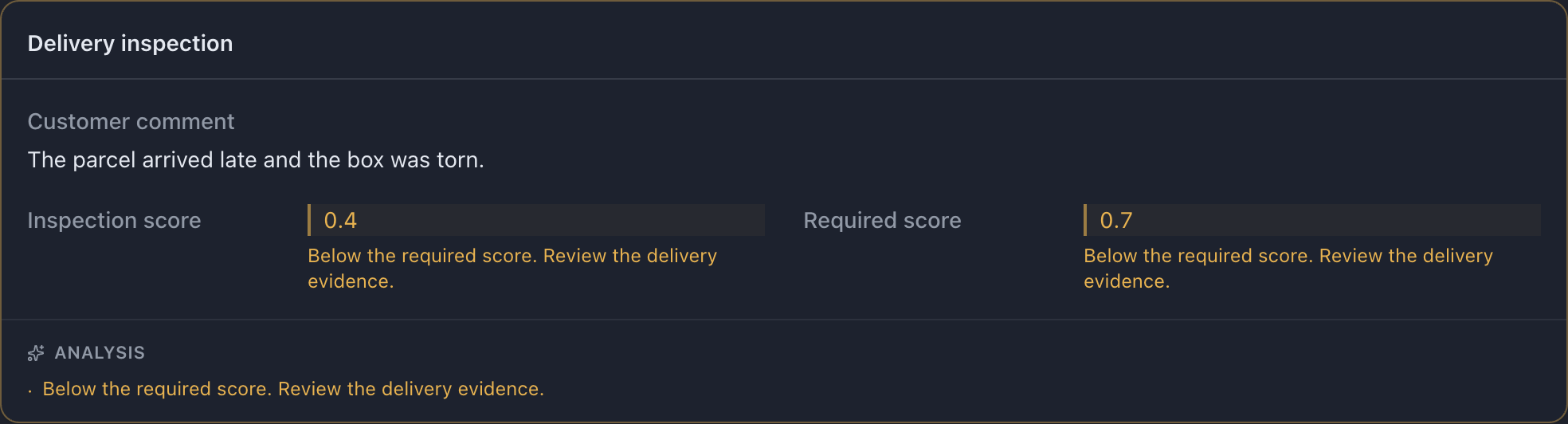
Flag values that need attention: configuration, sample data, and walkthrough →
A fully offline config
Section titled “A fully offline config”Configure an assignment for a computer that must not make update requests.
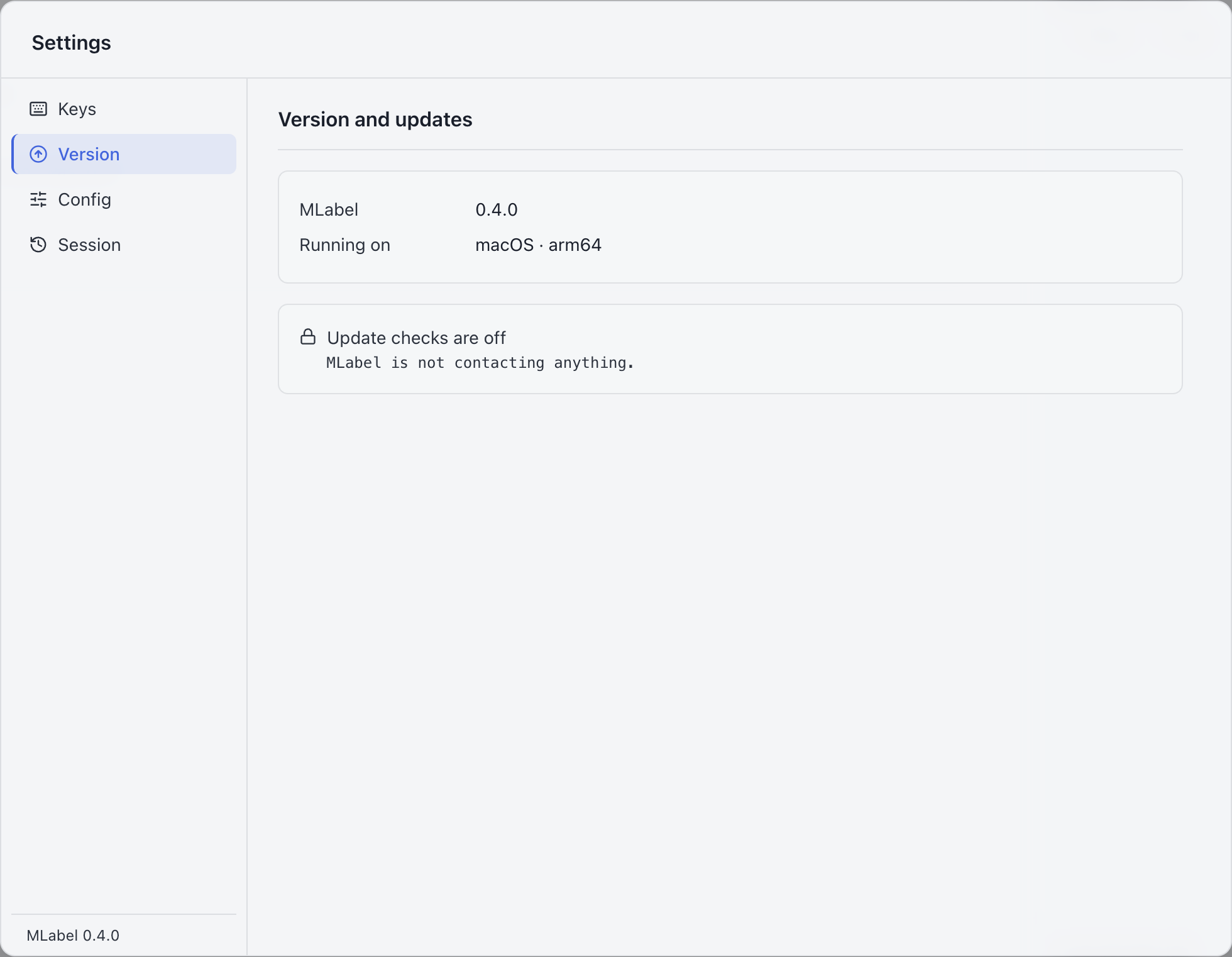
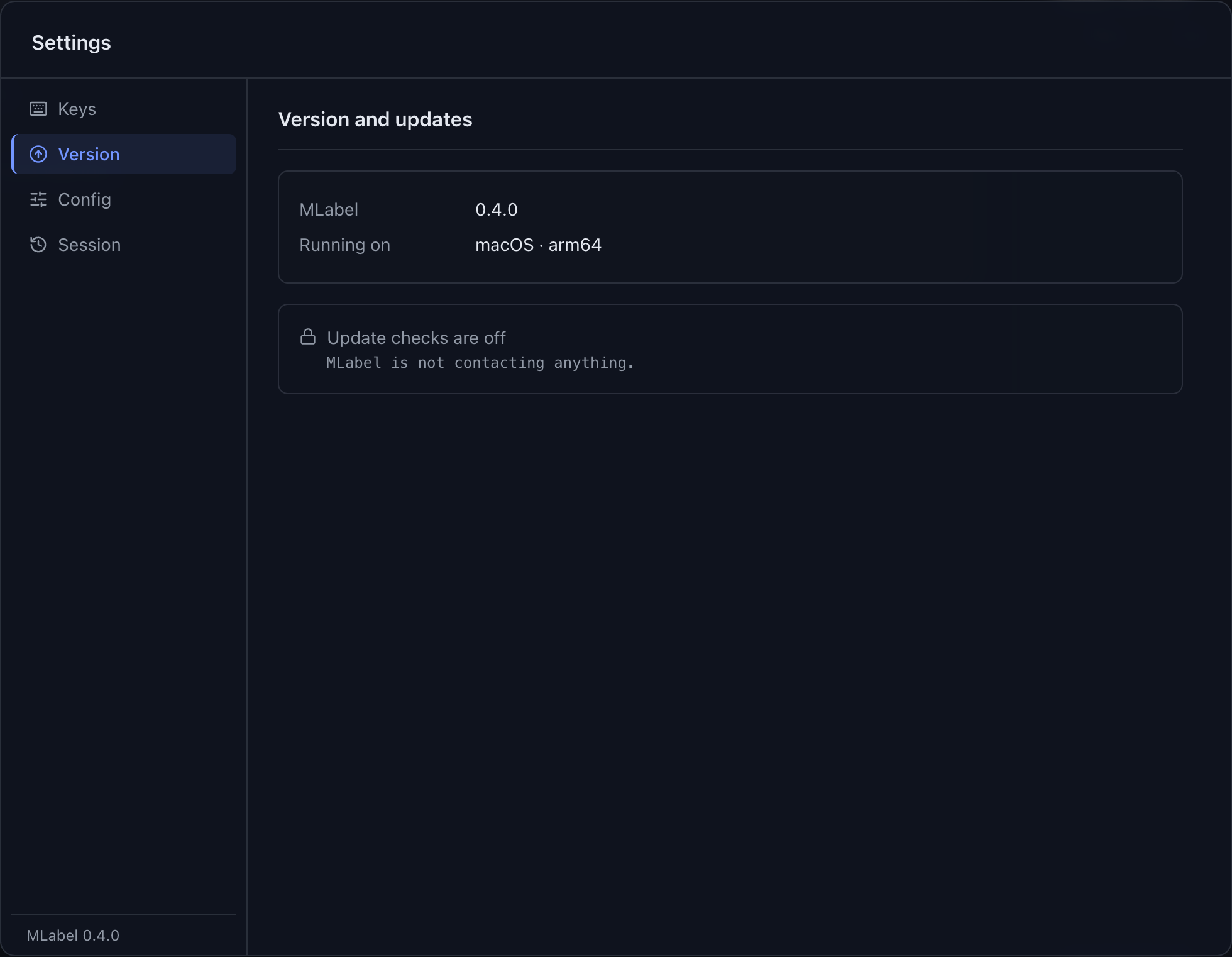
Disable update traffic: configuration, sample data, and walkthrough →
A semicolon-delimited source
Section titled “A semicolon-delimited source”Use a source file from a spreadsheet or pipeline that separates columns with semicolons.
Read and export semicolon-separated files: configuration, sample data, and walkthrough →
A fast three-key form
Section titled “A fast three-key form”Let labelers answer one short question with the keyboard.


Make a three-choice form: configuration, sample data, and walkthrough →
An optional free-text note
Section titled “An optional free-text note”Allow useful context without forcing labelers to write an explanation for every record.
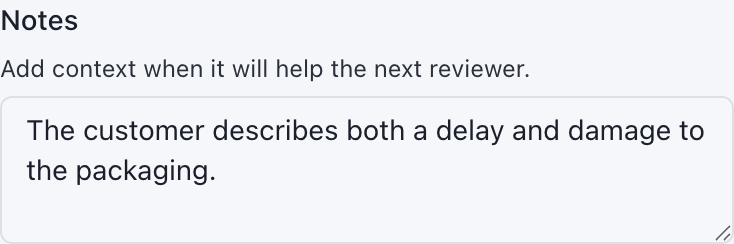
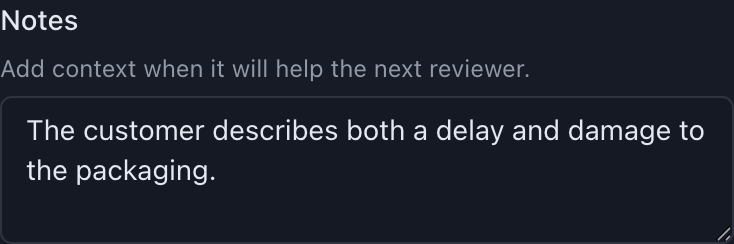
Add optional notes: configuration, sample data, and walkthrough →