
Disable update traffic
Configure an assignment for a computer that must not make update requests.
What the labeler sees
Section titled “What the labeler sees”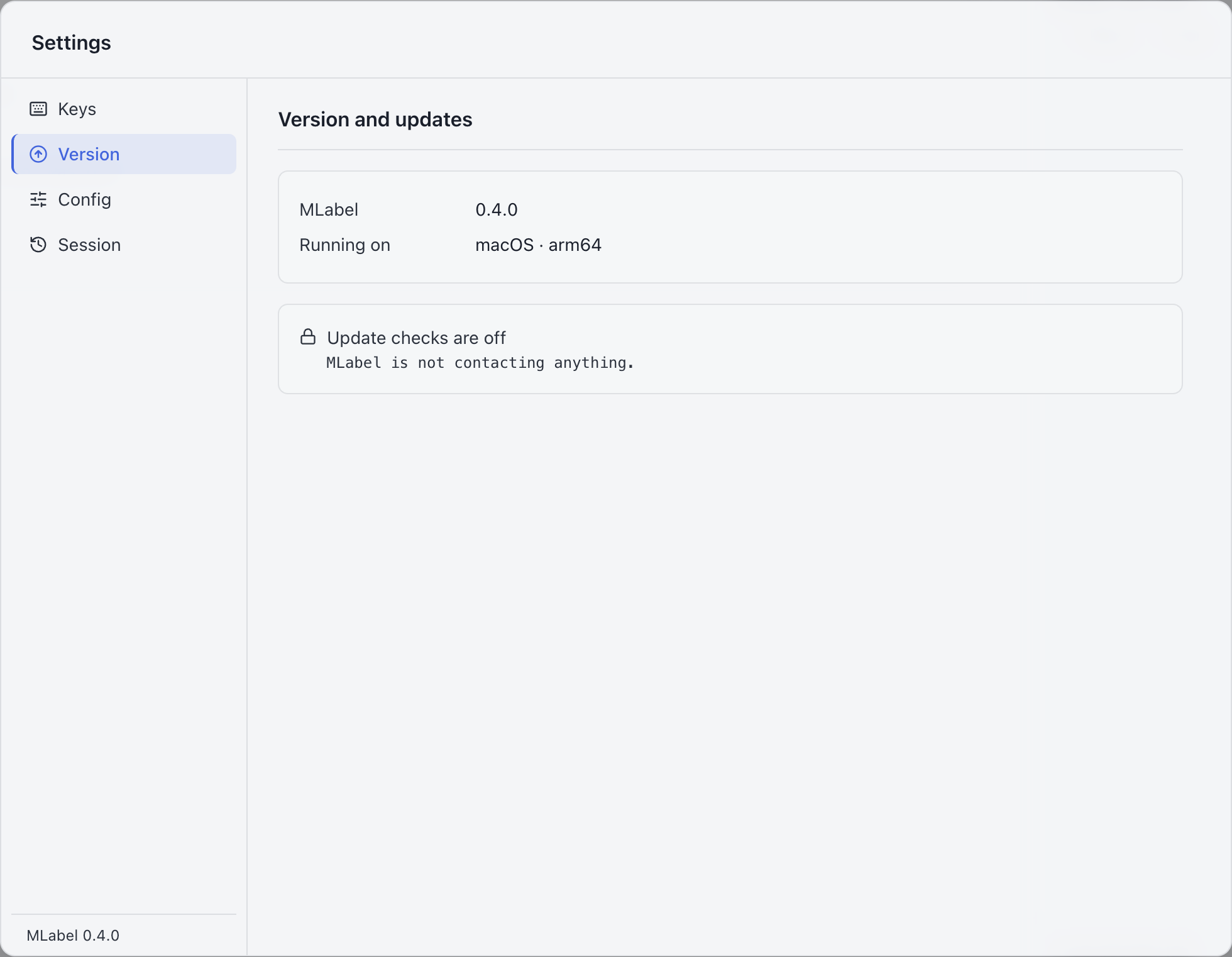
Try this example: download the complete configuration and sample CSV. Open the configuration in MLabel, then load the CSV.
View the complete configuration
{ "$schema": "https://mlabel.vlad.gg/mlabel.schema.json", "version": 2, "network": { "updateChecks": false, }, "input": { "fields": [ { "name": "id", "type": "text", "display": "Record ID", }, { "name": "comment", "type": "text", "display": { "title": "Customer comment", "titlePosition": "above", }, }, ], }, "output": { "fields": [ { "name": "id", "type": "text", "fill": { "kind": "copy", }, }, { "name": "verdict", "type": "enum", "widget": "radio", "display": "Review decision", "choices": [ { "name": "pass", "display": "Pass", }, { "name": "fail", "display": "Fail", }, ], }, ], },}View the sample CSV
id,commentr001,The parcel arrived late and the box was torn.Configure it
Section titled “Configure it”Set this at the top level of the configuration. With updateChecks: false, MLabel does not start the updater and the user cannot enable it through their own settings.
All downloadable examples in this cookbook use this policy. The application never fetches the $schema URL; an editor may fetch it while you author the file.
The relevant setting is in network. The download above includes the surrounding configuration.
{ "updateChecks": false,}Try it and check the result
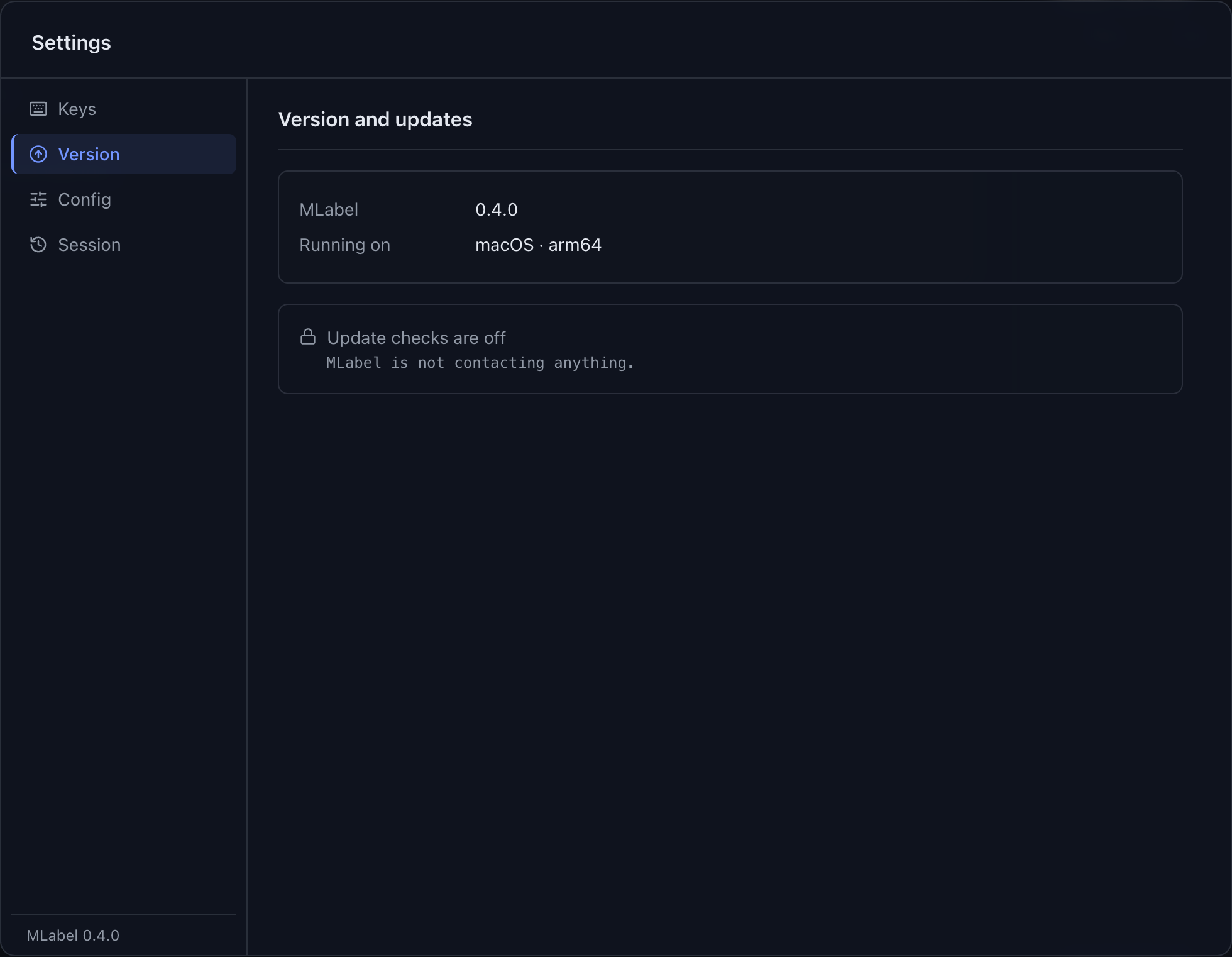
Section titled “Try it and check the result”Load the configuration and open Settings → Version. Check now is unavailable, and Network is absent from the settings tabs.
That screen helps confirm the loaded policy. For deployment details and the distinction between configuration and personal preference, read Network policy.
Install future releases manually using files approved for your environment.