
Settings
Open Settings with the sliders button in the bottom bar or ⌘/Ctrl + ,. It opens over your current work.
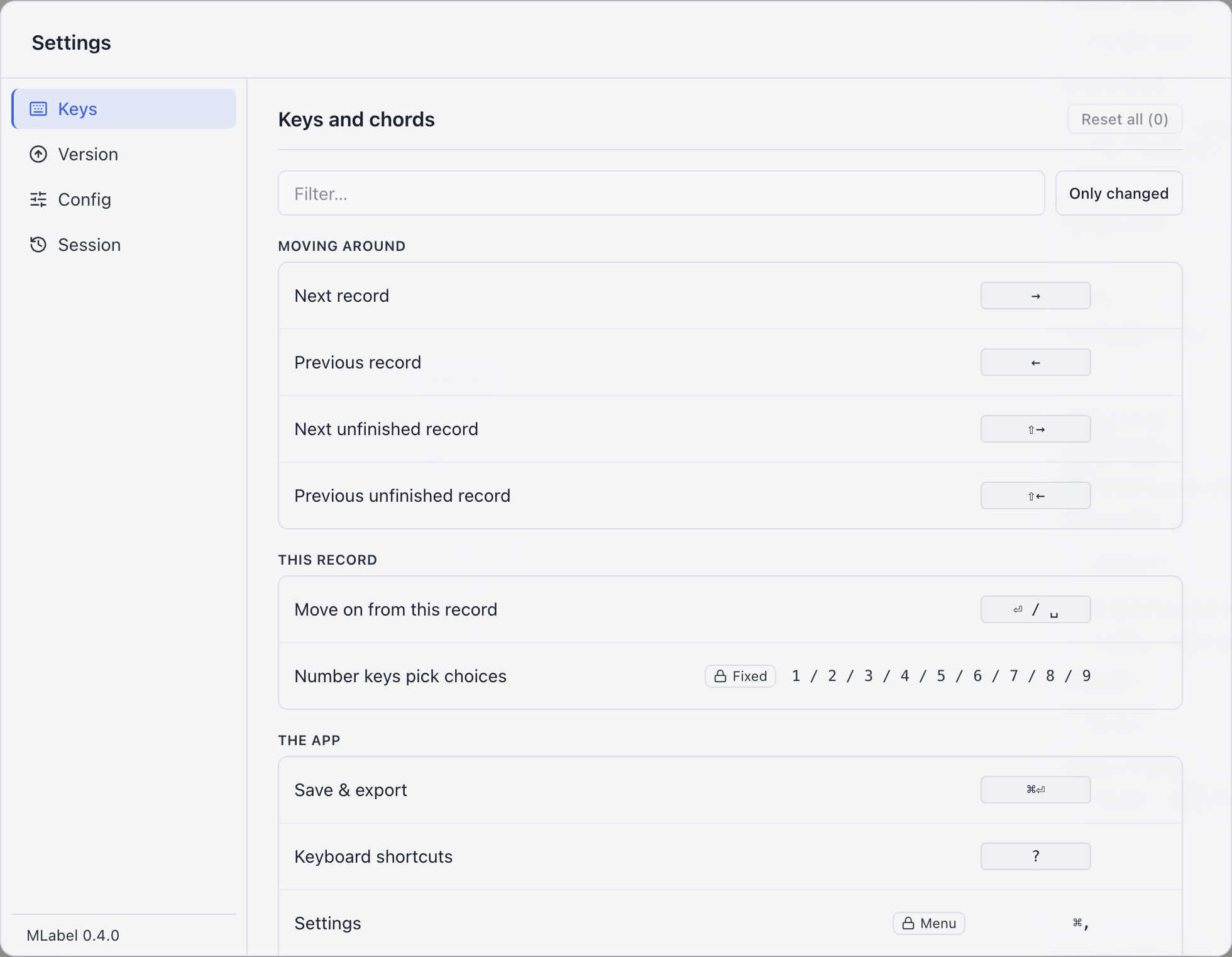
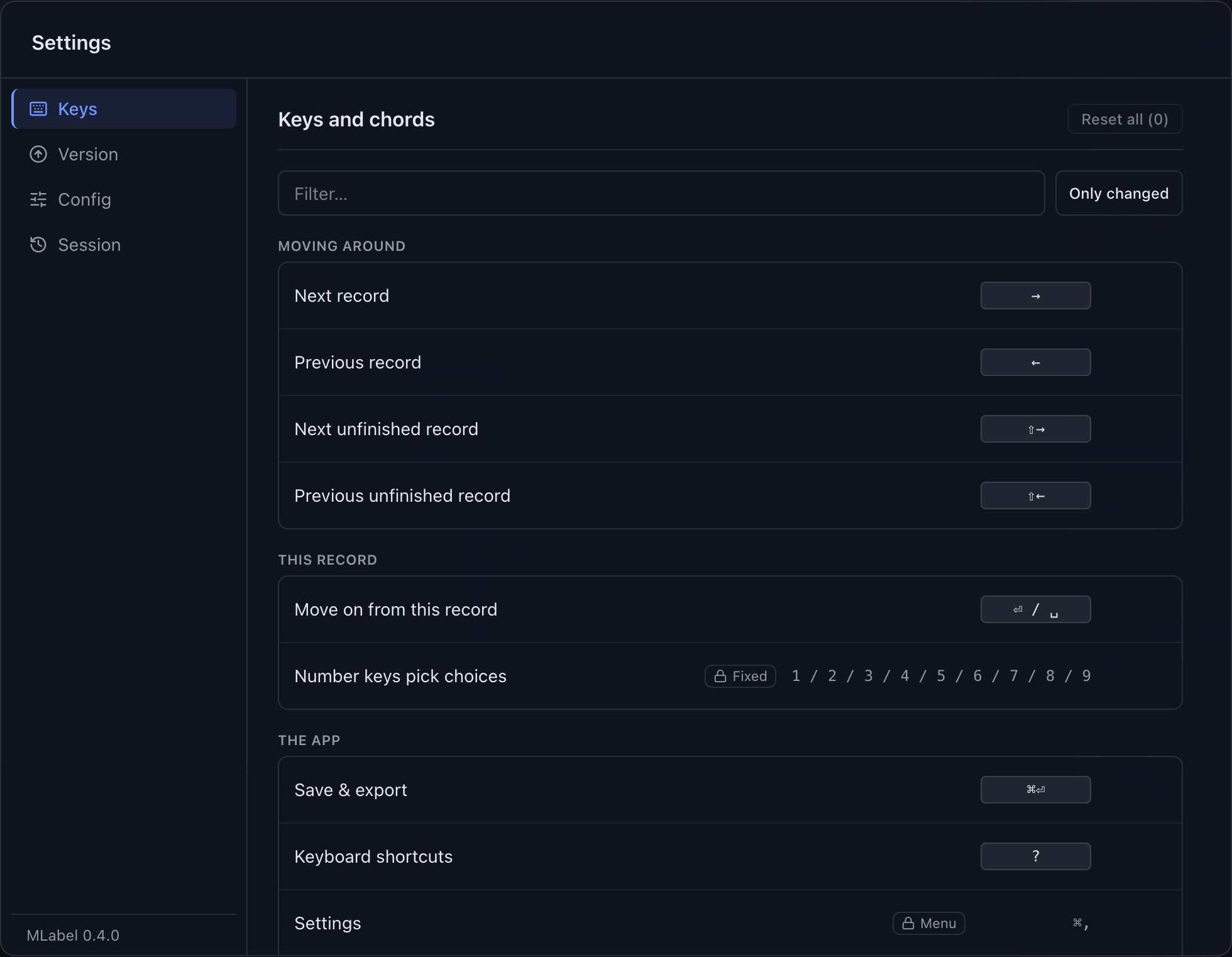
| Section | Use it to… |
|---|---|
| Keys | Find actions, change editable shortcuts, and restore defaults |
| Version | Check the app version, platform, and update status |
| Config | Read a summary of the current project’s fields, layout, and rules |
| Session | Inspect saved progress or clear the current session |
| Network | Inspect update activity and change your update preference, when the config allows it |
Change a shortcut
Section titled “Change a shortcut”- In Keys, search for the action or field.
- Select its editable key control and press the new combination.
- Resolve any conflict reported by the dialog. Press Escape to cancel recording.
- Check the new binding in the help dialog or beside the relevant field.
Some bindings are fixed, including native menu actions and number-key choice selection. The app rejects reserved system shortcuts and combinations already assigned elsewhere. See keyboard shortcuts.
Check the configuration
Section titled “Check the configuration”Config summarizes the project in plain language. Use it to confirm the input/output formats, fields, and display rules before working on an assignment.
Change… loads a different configuration and closes the current data file. Finish or safely preserve your work before switching projects.
Clear a session
Section titled “Clear a session”Session → Clear session asks for confirmation and discards your entered answers and saved session. Copied source values remain. There is no undo; see saving and resuming.
Updates and network activity
Section titled “Updates and network activity”Version shows the installed version and update status. Network shows activity during this launch and lets you turn update checks off. The project configuration can forbid updates; your preference cannot override that restriction, and the Network section is hidden when the configuration forbids them.
The activity log is held in memory and clears when you quit. The log is a troubleshooting aid, not a permanent audit record.