
Visual field guide
A type defines the value stored in a field. A widget defines the control a labeler uses to answer it. These previews are cropped renders of the real MLabel 0.4.0 controls, using synthetic example answers. They are images, not editable forms.
Each code block is one output-field fragment. Put it inside output.fields in your
configuration. For a complete file, use the first-project tutorial.
Choose a control
Section titled “Choose a control”| Answer needed | Type | Control |
|---|---|---|
| Short text | text |
Text box (default) |
| Several lines of text | text |
textarea |
| Whole number | integer |
Number input (default) or slider |
| Decimal number | number |
Number input (default) or slider |
| True or false | boolean |
Checkbox |
| Calendar date | date |
Date picker |
| One of several options | enum |
Dropdown (default) or radio |
| Several options | array of enum |
Checkboxes |
| Nested data to read or copy | object, map, other arrays |
Read-only display; no answer control |
Short text
Section titled “Short text”A short phrase or explanation. Use a text area when a sentence or paragraph is expected.


{ "name": "reason", "type": "text", "display": "Short explanation",}Long text
Section titled “Long text”Notes and explanations spanning several lines. Make optional notes explicitly optional.
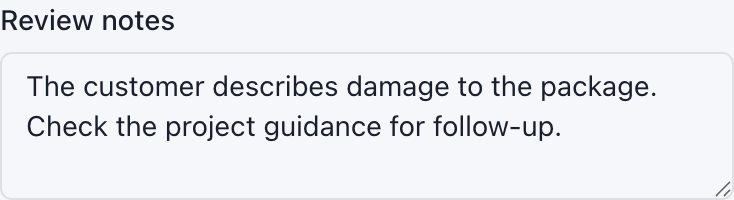
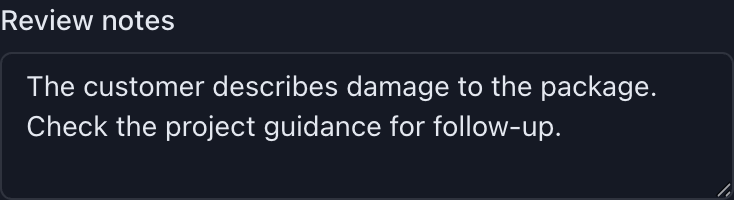
{ "name": "notes", "type": "text", "widget": "textarea", "required": false, "display": "Review notes",}Whole numbers
Section titled “Whole numbers”Counts or integer ratings. Set minimum and maximum values when the scale is bounded.


{ "name": "rating", "type": "integer", "min": 1, "max": 5, "display": "Rating (1–5)",}Decimal numbers
Section titled “Decimal numbers”Measurements or scores that can include a fractional part. The step controls the input increment; it is not a validation rule.


{ "name": "confidence", "type": "number", "min": 0, "max": 1, "step": 0.01, "display": "Confidence (0–1)",}A bounded slider
Section titled “A bounded slider”A position on a known scale. Declare min, max, and step so the control matches the question. Its initial thumb position is not an answer until the labeler supplies a value.


{ "name": "rating", "type": "integer", "widget": "slider", "display": "Rating (1–5)", "min": 1, "max": 5, "step": 1,}A yes/no checkbox
Section titled “A yes/no checkbox”A boolean value. A missing answer is different from false. If you need an explicit Yes or No decision that is easy to review, consider an enum with radio buttons.


{ "name": "followUp", "type": "boolean", "display": "Needs follow-up",}A date
Section titled “A date”A calendar date. The app reads and displays dates as UTC; the appearance of the date picker can vary by operating system.


{ "name": "reviewDate", "type": "date", "display": "Review date",}One choice, visible options
Section titled “One choice, visible options”Choose one answer from a short list. Stored values come from each choice name; display captions are for the labeler.


{ "name": "sentiment", "type": "enum", "widget": "radio", "display": "How does the customer feel?", "choices": [ { "name": "positive", "display": "Positive", }, { "name": "negative", "display": "Negative", }, { "name": "unclear", "display": "Unclear", }, ],}One choice, dropdown
Section titled “One choice, dropdown”Choose one answer while using less screen space. This is the default for enum fields.


{ "name": "sentiment", "type": "enum", "display": "Sentiment", "choices": [ { "name": "positive", "display": "Positive", }, { "name": "negative", "display": "Negative", }, { "name": "unclear", "display": "Unclear", }, ],}Several choices
Section titled “Several choices”Select any of the allowed options. Interactive arrays must contain enum items. Selected names are exported as a JSON list in configuration order. With this optional example, selecting nothing leaves the value empty.


{ "name": "issues", "type": "array", "display": "Issues to report", "required": false, "items": { "type": "enum", "choices": [ { "name": "delivery", "display": "Delivery", }, { "name": "packaging", "display": "Packaging", }, ], },}Reading structured input
Section titled “Reading structured input”Input fields are read-only. Text and numbers display as values, scalar lists as individual entries, and structured objects and maps as tables. Arrays of objects use one row per item.
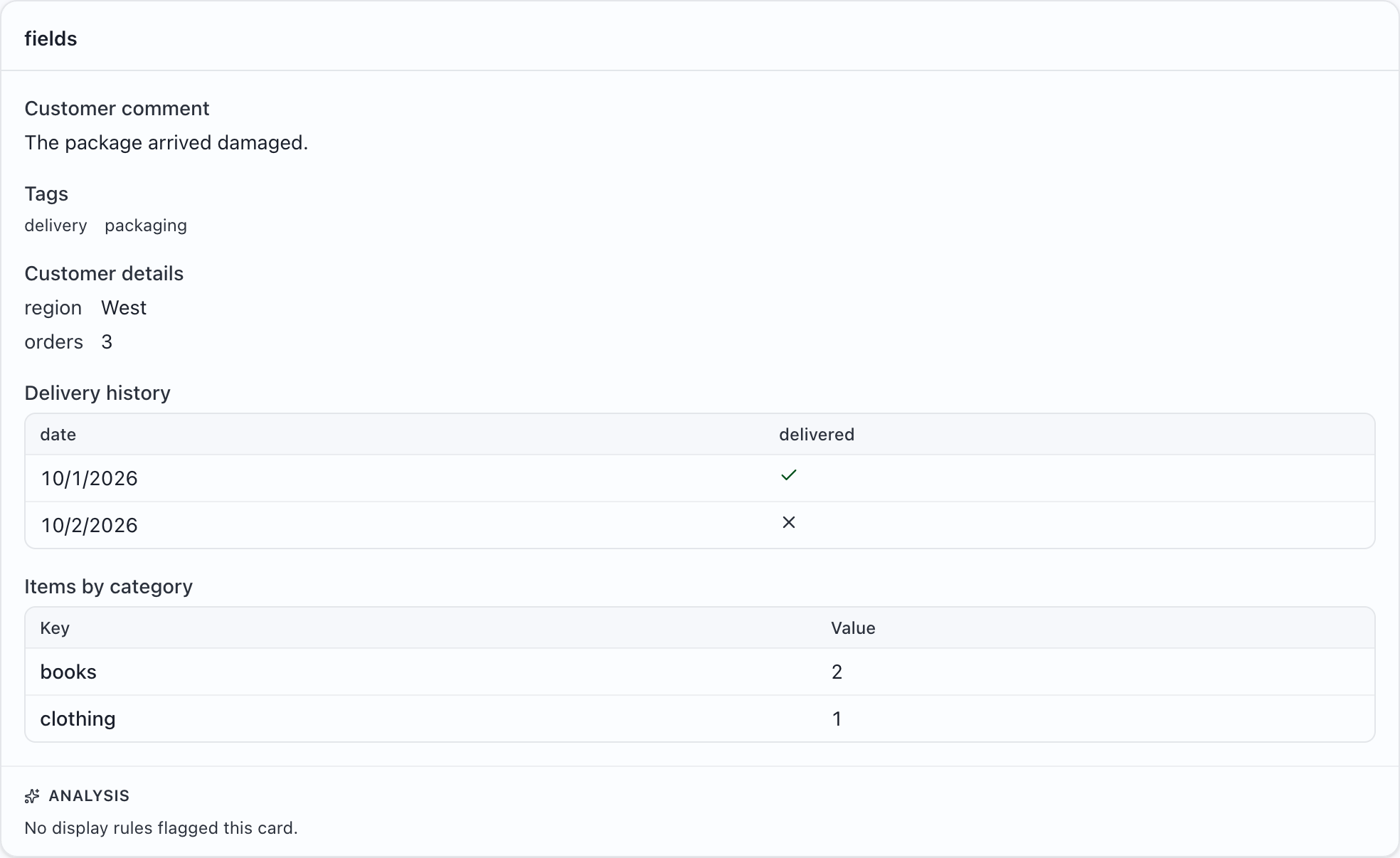
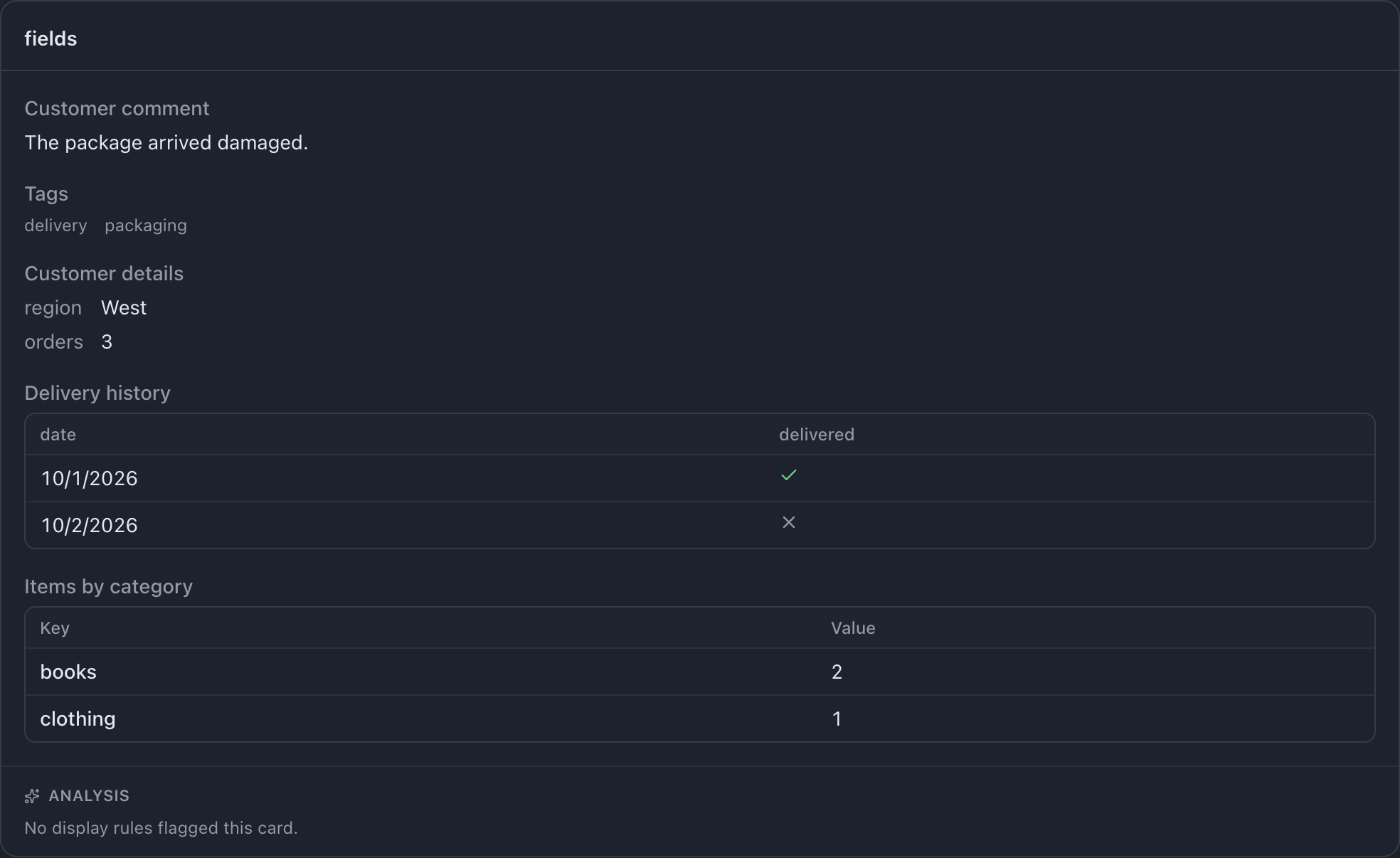
See value types for the structure and cards and layout
for arranging the display. Objects and maps can be copied into output fields with
fill: { "kind": "copy" }; they cannot be entered by a labeler.
Required answers and errors
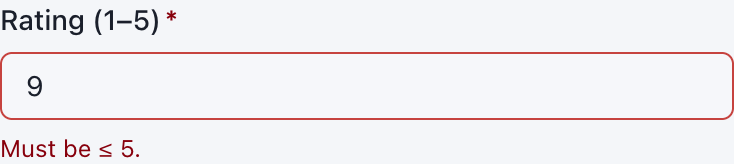
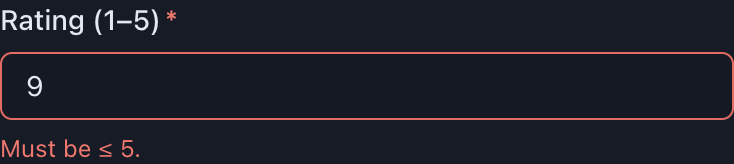
Section titled “Required answers and errors”An asterisk marks a required answer. User and session fields are required unless the
configuration sets required: false. Constraints such as text length or numeric range
are checked beside the answer.
A control must support its field’s type. For example, a text field cannot use a slider. Copied values and timestamps have no answer control, so do not assign them a widget.